- Home
- Troubleshooting
- Pending connection
Troubleshooting
Pending connection
Get a device past Pending connection — four common causes and five router settings.
Updated: September 2026
What the message means
The device is not talking to the Shelly server — and that covers two quite different situations: either it never joined your Wi-Fi, or it joined but cannot get out to the internet.
The four common causes
1. The Wi-Fi password is wrong
By far the most frequent, and the one people are most certain they have ruled out.
Check it rather than trust it. Next time the app asks which network to join, tap Edit, type the password again, and use the eye icon to read what you actually entered. A trailing space or a capital in the wrong place looks identical to a correct password.
2. Both bands share one network name
Many routers broadcast 2.4 GHz and 5 GHz under the same SSID, and some actively push clients onto 5 GHz. A Shelly cannot use 5 GHz, so it is being handed a network it cannot join.
Separate the bands and give them different names. The router is usually reachable at 192.168.0.1, 192.168.1.1 or 10.0.0.1 — check its manual. See Wi-Fi and router setup for the full set of settings worth changing while you are in there.
3. The signal is too weak
Both ends matter: the device needs a usable signal, and so does the phone you are setting it up from.
Stand next to the device with the phone on the 2.4 GHz network while you commission it. If it works there and fails in place, the problem is coverage, not configuration.
4. Cloud is switched off on the device
If cloud access was disabled — deliberately or by someone else — the device runs perfectly on the local network and never appears in the app.
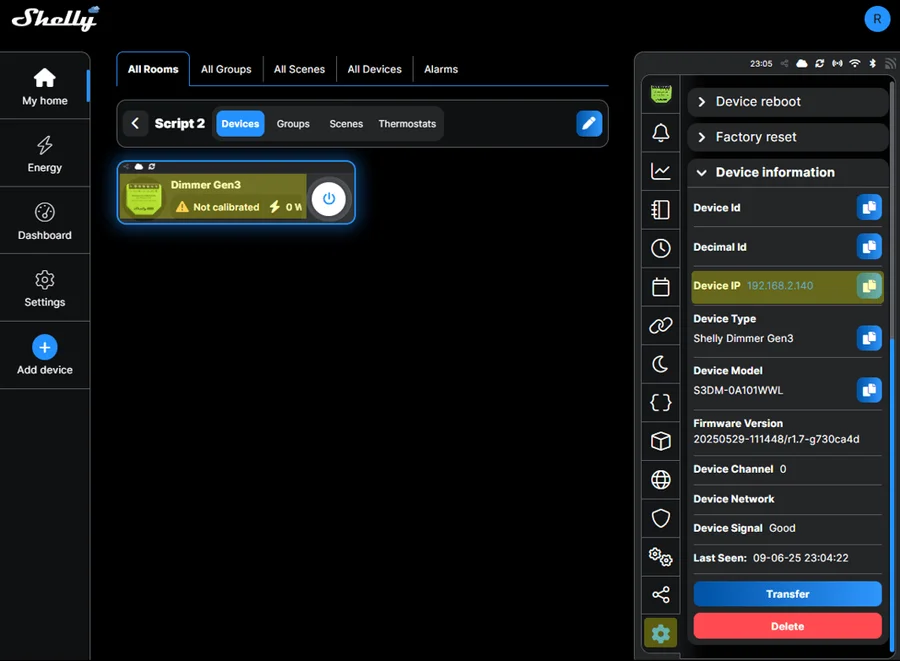
Open the device’s IP address in a browser, then go to Settings → Cloud and enable it. See the web interface.
Advanced router settings
When the four above are ruled out, the router is usually doing something on purpose.
- Firewall blocking outbound traffic. Some routers block outgoing connections from unrecognised devices by default. The Shelly is on the network and still cannot reach the server.
- VPN or custom DNS. A router-level VPN or a custom DNS server can stop the device resolving the Shelly cloud hostname.
- IP address conflict. Two devices assigned the same address will both behave unpredictably. Reserving the address in the router solves it permanently.
- Captive portal. Guest and public networks that require accepting terms in a browser cannot be used at all. The device has no browser and no way to click accept.
- Client limit reached. Some ISP routers cap Wi-Fi clients at ten, and often the limit cannot be raised.
When nothing works
Take the app out of the equation and configure the device by hand.
Work down this list, not up it. Each rung costs more than the one above.
- Open the device on its IP address and read its Wi-Fi and cloud status there — see the web interface. If cloud is simply off, that is cause 4 above, and one checkbox ends it.
- Network reset. Clears the Wi-Fi credentials and switches the access point back on for 15 minutes. Schedules, scripts, calibration and the device name all survive, so there is nothing to rebuild afterwards.
- Factory reset, and only last. It clears everything, and it still does not release the device from a Shelly account.
Reset a device covers what each one takes with it, and which button hold does which on your generation.
Once the device is offering its own access point, you have 15 minutes — and only five once it is back on Wi-Fi. A network reset, five seconds on the button or a power cycle each give another 15; see the access point closes itself.
- Join it
- Open
http://192.168.33.1and enter the Wi-Fi credentials directly - Enable cloud access in the same interface
This is method 2 in add a device, and it is worth knowing well: it shows you which step fails, where the app only reports that something did.
Tips & best practices
- Check signal strength before closing the wall. Anything weaker than about −70 dBm will do this to you eventually.
- A device can be perfectly healthy and still say pending. Cloud disabled means local control keeps working — the app is simply blind to it.
- Guest networks never work. If the customer only has guest Wi-Fi to offer, the answer is a proper network, not a workaround.
- Reserve the address for anything used by webhooks, scripts or Home Assistant, and IP conflicts stop happening.
- Update the firmware once it is online. Several connection bugs are already fixed — see update device firmware.