- Home
- Getting started
- Update firmware
Getting started
Update device firmware
Update a Shelly from the app or its web interface, and know which build to install.
Updated: August 2026
Before you update
Two routes below: the Shelly Smart Control app, and the device’s own web interface.
- Do not cut power during an update. An interrupted update is the main way a device ends up unresponsive.
- Check the signal first. A device at the edge of coverage can lose the connection mid-transfer. Move it, or improve the signal, before updating.
- Update one device at a time on a large installation. Twenty devices pulling firmware at once is the situation weak Wi-Fi fails in.
- Update before claiming a new device, not after — see below.
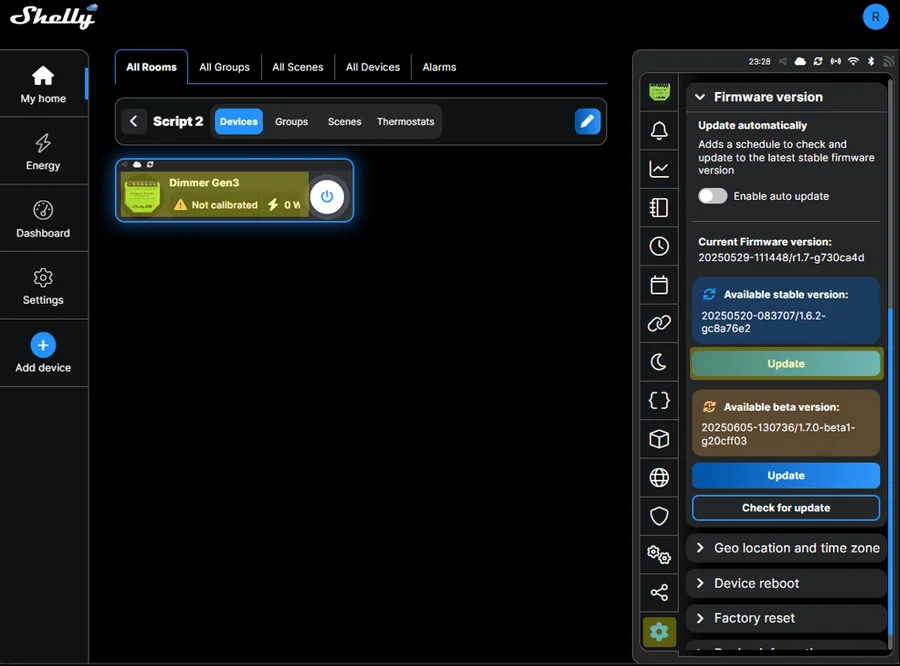
From the app
The route for devices already in service.
- Open Shelly Smart Control
- Select the device
- Tap the settings icon
- Choose Firmware update
- If an update is available, tap Update now
Install the stable build unless you are deliberately testing. Beta builds are test releases.
The web app at control.shelly.cloud does the same, and shows the version across every device at once — which is how you find the three that were missed.
From the web interface
The route to use when commissioning. The device is on your network but not yet in anyone’s account, so it starts life current.
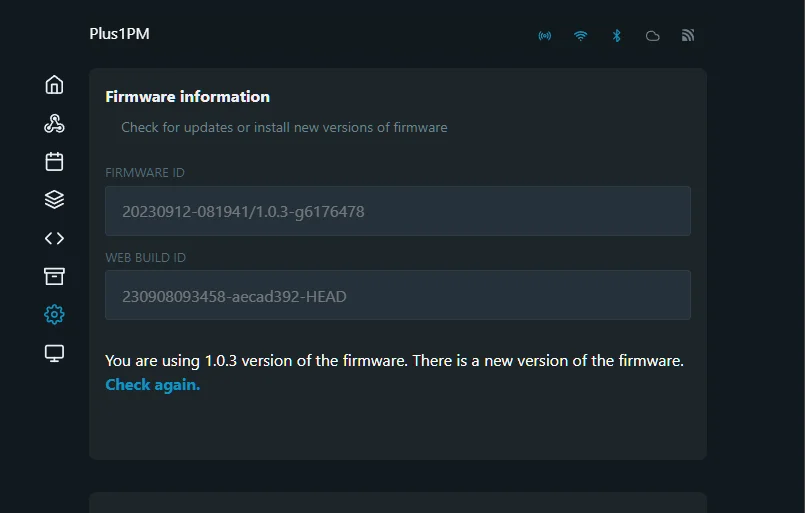
- Open a browser and go to the device’s IP address, for example
http://192.168.1.42 - Go to Settings
- Scroll to Firmware update
- If a newer version is offered, press Update and wait
Install the stable build unless you are deliberately testing. Beta builds are test releases.
The device reboots by itself when it is done. See the web interface for how to find the address.
Why it matters
Several of the connection problems that get blamed on the router — devices dropping off, slow reconnects, battery devices missing updates — are bugs that were fixed months ago, so a device that is misbehaving is worth a version check before anything else is changed. It is the cheapest thing on the list.
Tips & best practices
- Check the version before you troubleshoot anything. It resolves a surprising share of reported faults.
- Read what changed on major versions. Firmware 1.7.5 altered access point behaviour, which surprised a lot of installers — see the web interface.
- Battery devices update on their own schedule. They are asleep most of the time, so an update may take a wake cycle to arrive. Waking the device by pressing its button speeds it up.
- Going back. You can return from a beta to the stable build at any time. You cannot go back from one stable version to an earlier one.
- If an update stalls or fails, do not cut power and retry blindly — see update problems.
Video tutorial
Updating both a Wi-Fi device and a Bluetooth device, and what differs between them.
Loads YouTube when you press play. Watch on YouTube
By ShellyGuide on YouTube