Which route to use
Scripts run on Gen2 devices and newer. Both routes below install the same thing; they differ in what you can see afterwards.
Use the web interface when you are writing or debugging. It gives you a console showing everything the script prints, which is the only way to see why something is not working.
Use the app when you already have a script that works and just need it onto a device.
From the web interface
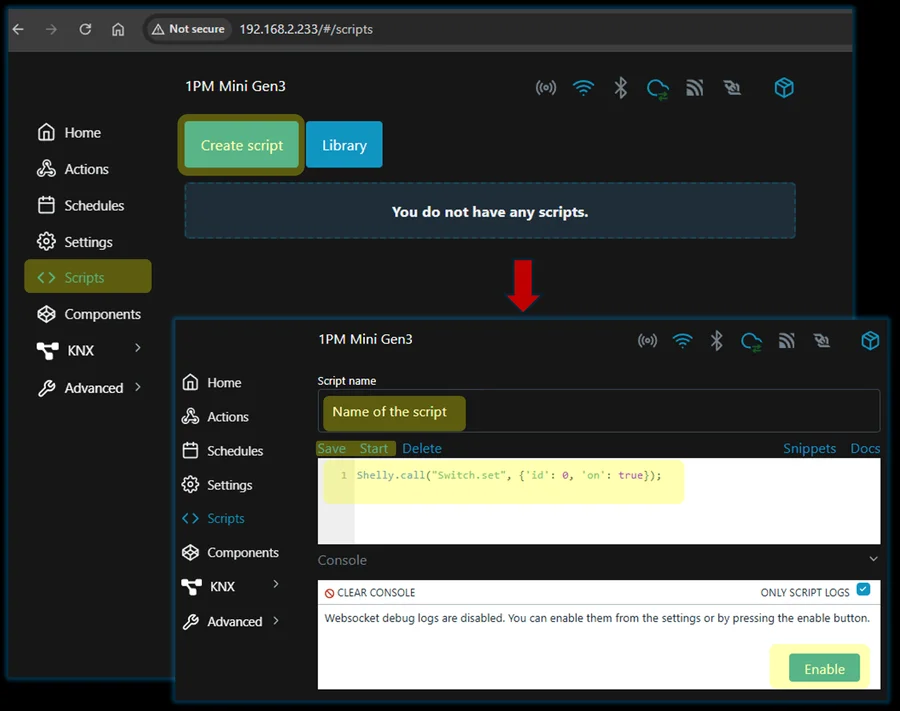
- Find the device’s IP address — in your router, or in the app under device settings. See the web interface.
- Open it in a browser, for example
http://192.168.1.42 - Choose Scripts in the left menu
- Click Create Script and give it a name that says what it does
- Paste the code into the editor
- Click Save, then Start
From the app
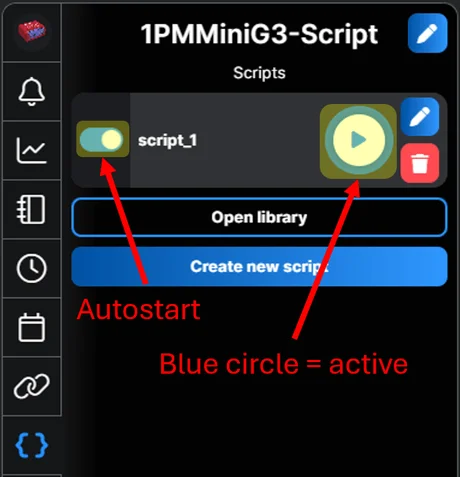
- Open Shelly Smart Control, or control.shelly.cloud in a browser
- Select the device
- Go to Scripts { }
- Tap Create new script and name it
- Paste the code into the editor
- Tap Save, then Enable to start it
Run on startup
Enable run on startup, or the script stops at the first power cut and does not come back. Nothing warns you — the device works normally, the automation is simply gone.
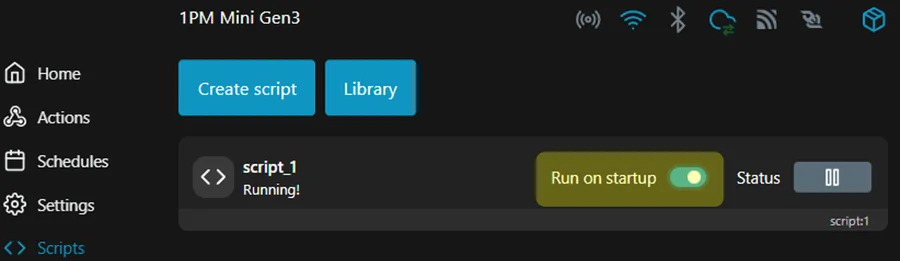
This is the single most common reason a working script “stops working after a few weeks”. It did not stop; it never restarted.
Tips & best practices
- Name scripts after what they do, not after what they are. “Price control, water heater” beats “Script 1” when you open the device in two years.
- Test with a short interval, then set it back. Checking a remote service every minute is fine for five minutes of testing and rude as a permanent setting.
- Watch the console on first run. A script that fails silently and a script that works look identical from the outside.
- A device runs several scripts at once, but each one uses memory. On a small device, one well-written script beats three overlapping ones.
- Keep a copy off the device. The editor is not a backup, and a factory reset takes every script with it — see reset a device.