1
Thermostat
Add a thermostat
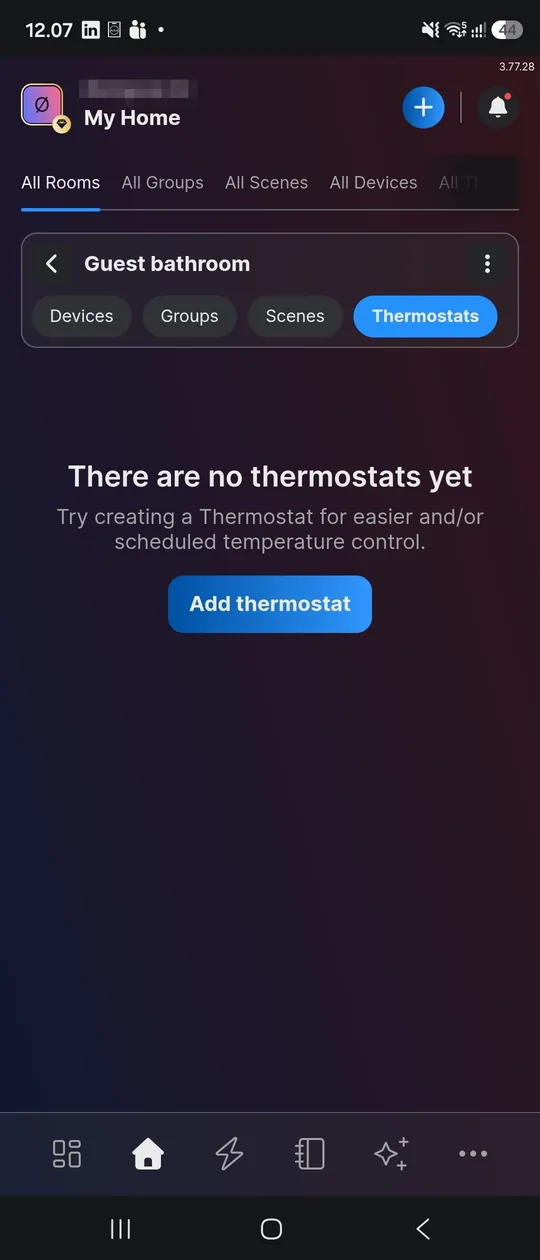
Open the room and choose Thermostats → Add thermostat.
Installations
Turn any Shelly relay and temperature sensor into a thermostat – in the app or on a Wall Display.
Updated: October 2026
Any Shelly relay plus any Shelly temperature sensor becomes a thermostat. Create one per zone. The same steps work for underfloor heating, an electric radiator, a towel rail or an air conditioner in cooling mode.
Name relays and sensors before you start – see naming in the underfloor heating guide.
Open the room and choose Thermostats → Add thermostat.
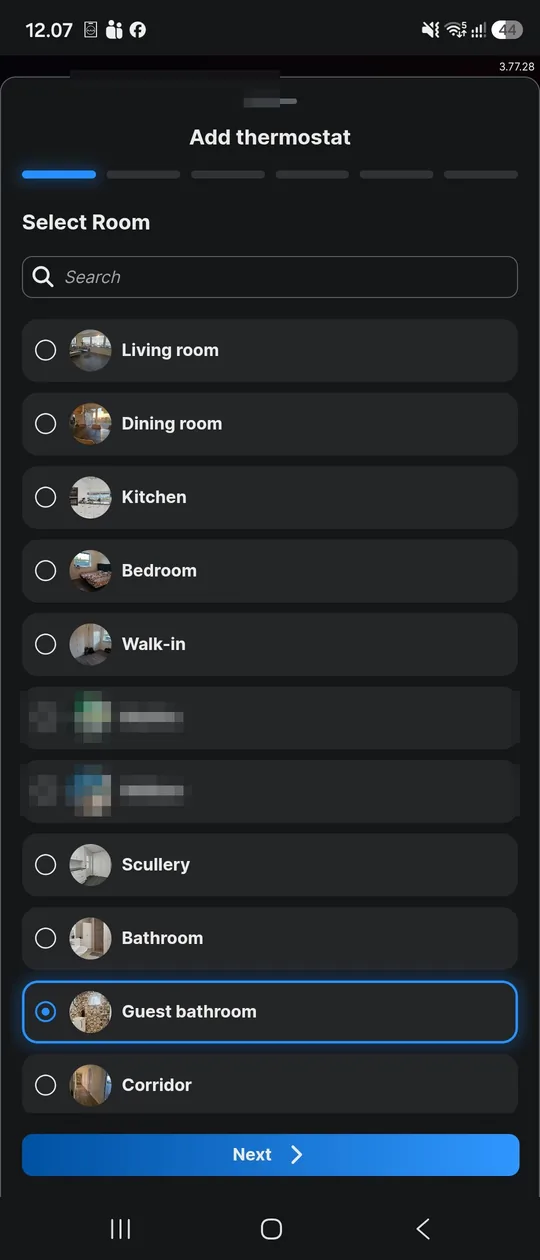
Choose the room the thermostat belongs to.
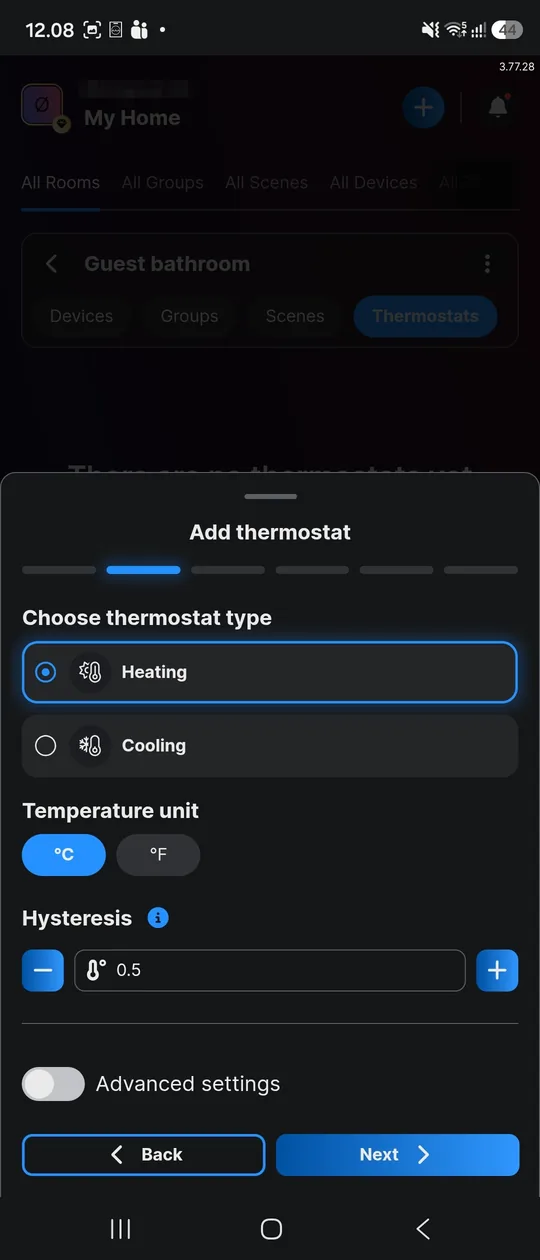
Choose Heating and °C. A hysteresis of 0.5 °C is a good start. Advanced settings are optional – see below.
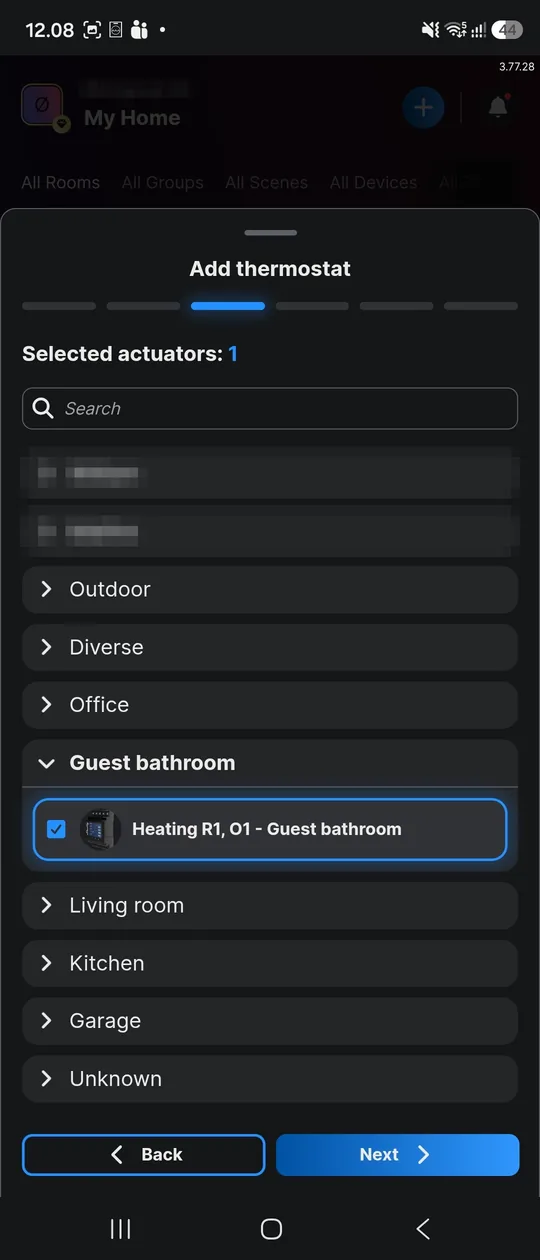
Choose the relay channel that switches the loop, e.g. “Heating R1, O1 - Guest bathroom”. This is where the naming pays off.
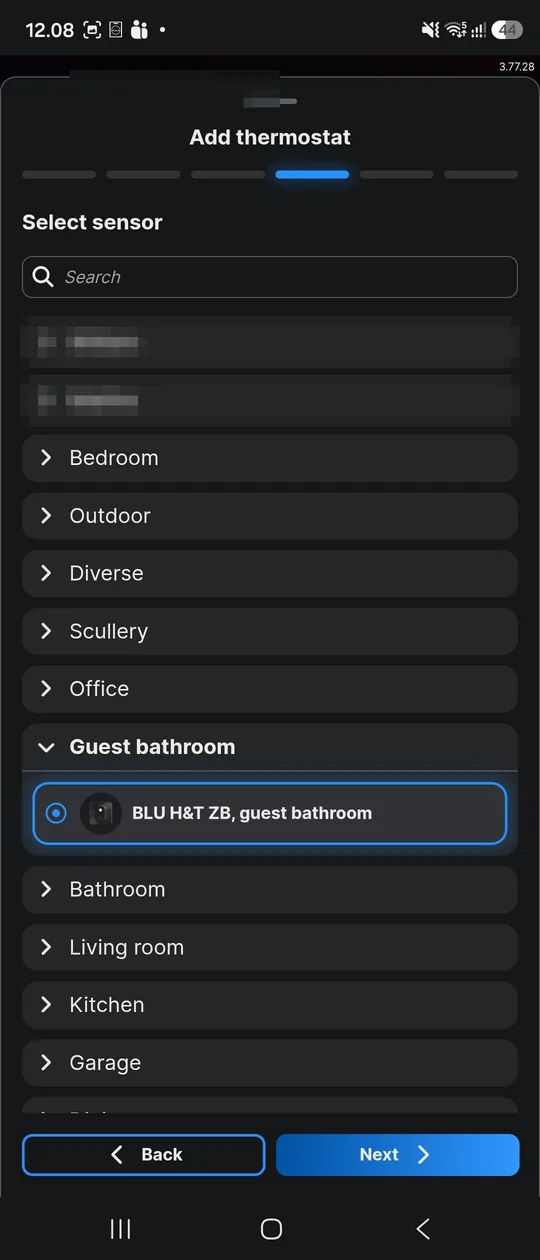
Choose the temperature sensor in the same room.
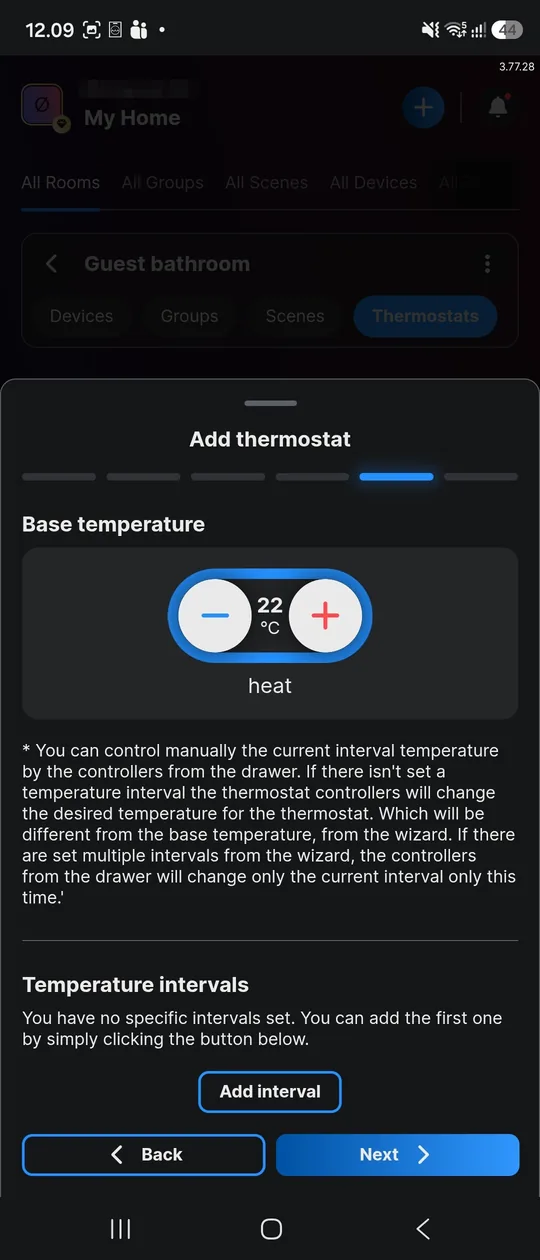
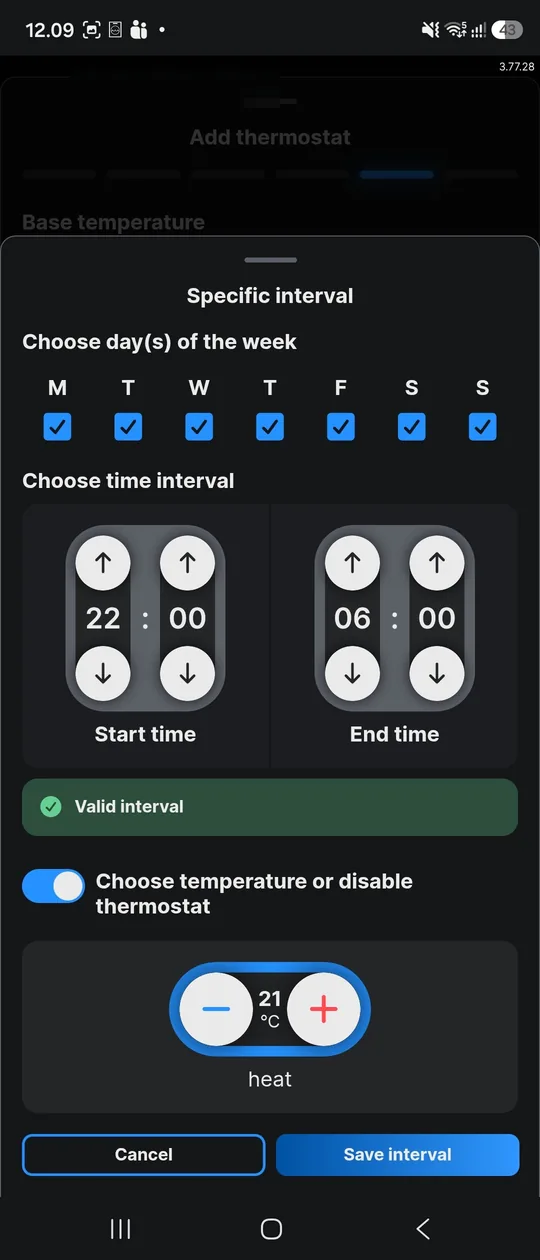
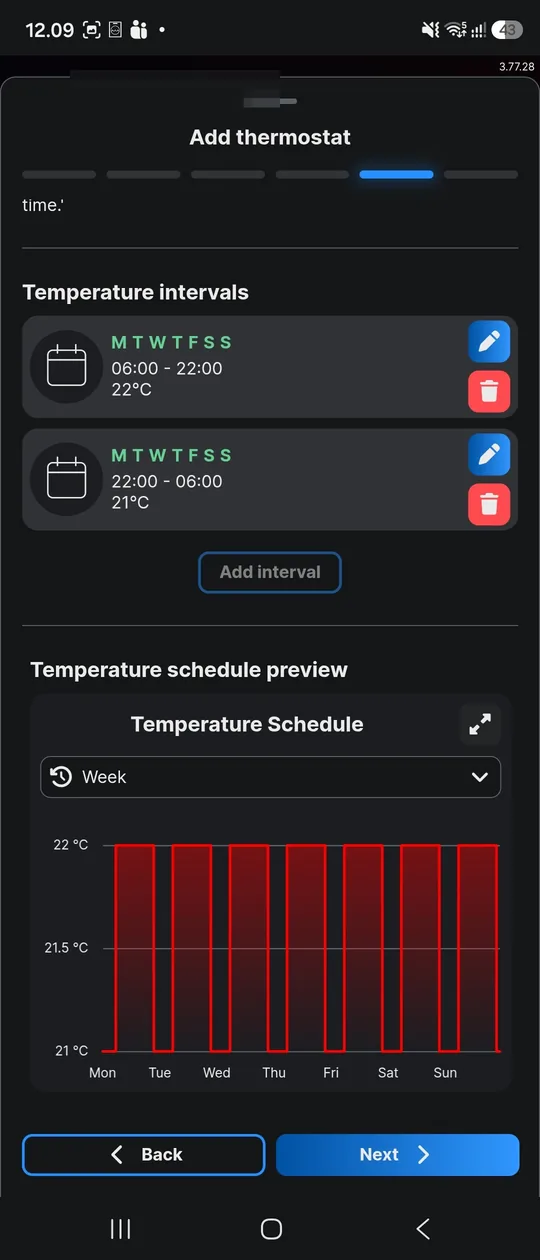
Set a base temperature, then add intervals that differ from it – for example 22 °C from 06:00 to 22:00 and 21 °C from 22:00 to 06:00.
Give it a name the customer recognises, e.g. “Floor heating, guest bathroom”.
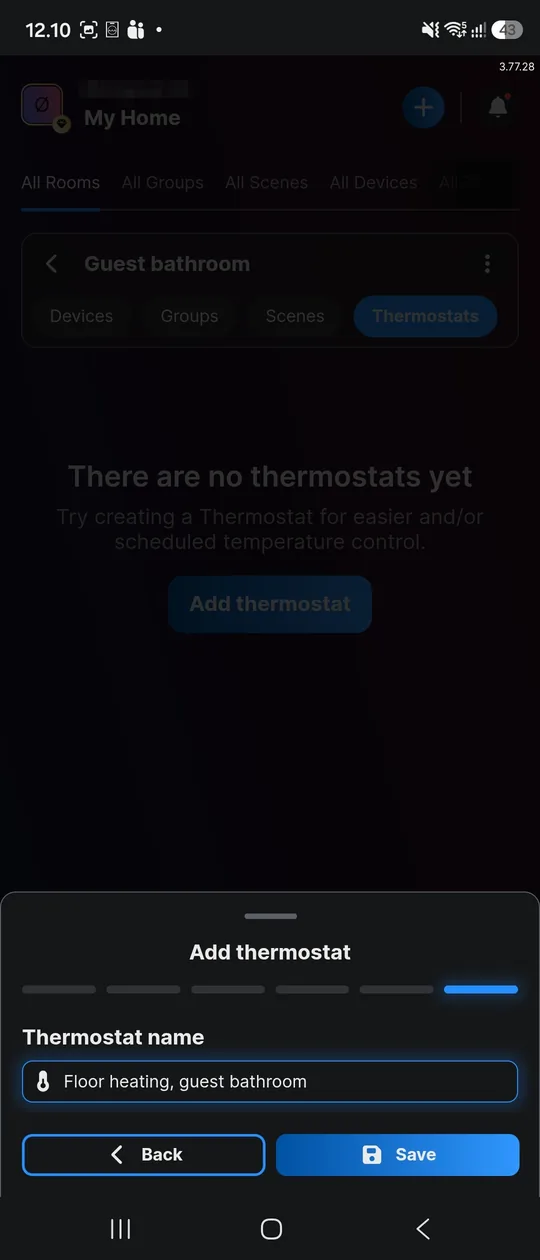
Save, then switch the thermostat on with the power icon. A thermostat that is saved but not activated does nothing.
When the customer wants a physical thermostat on the wall that keeps working without the app, the cloud or the internet.
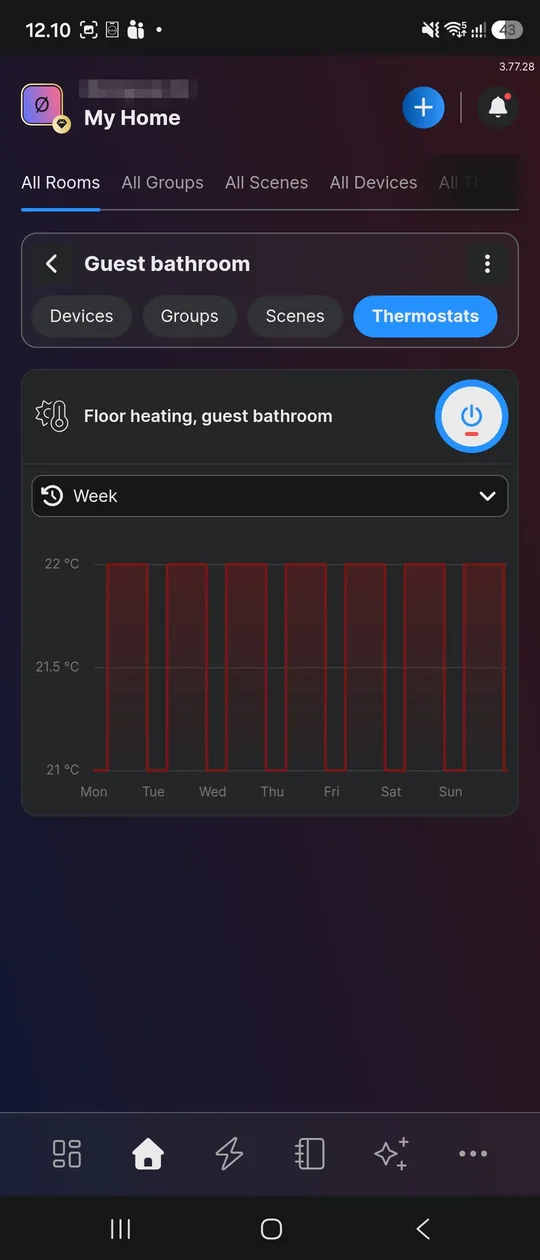
Shelly Wall Display X1i, X2i and XL can control the heating themselves. They have no built-in temperature sensor, so pair a Shelly BLU H&T ZB or BLU H&T Display ZB directly to the display.
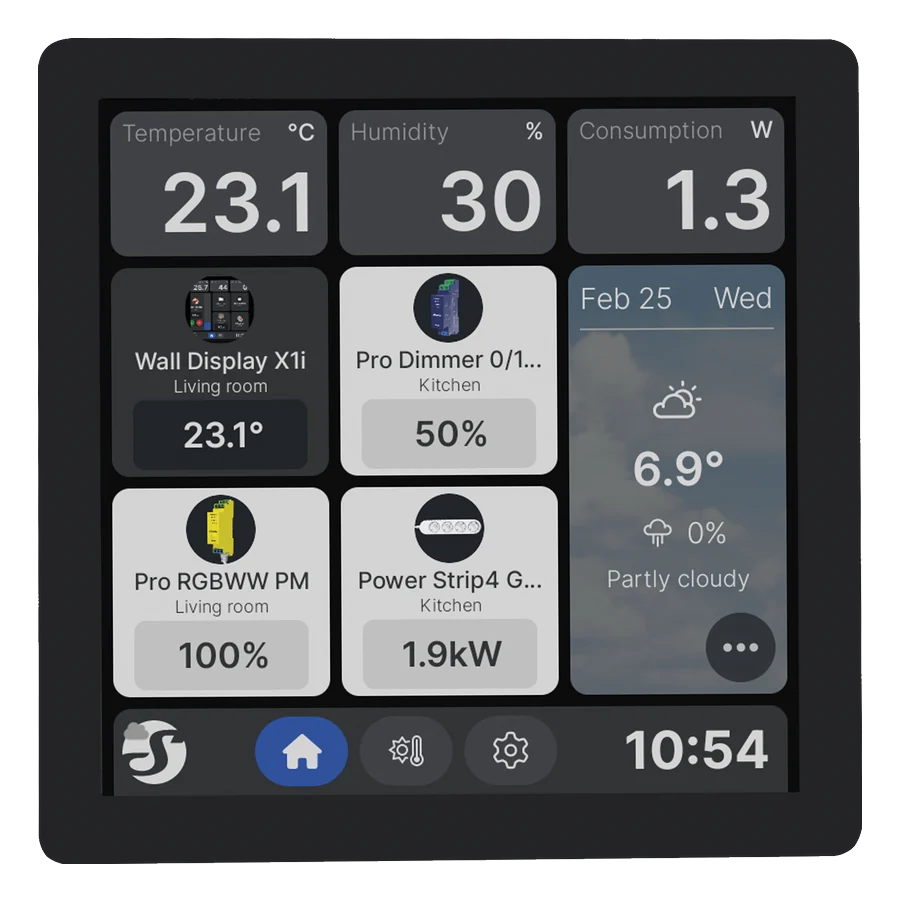
Compact wall display. Also in Silver.
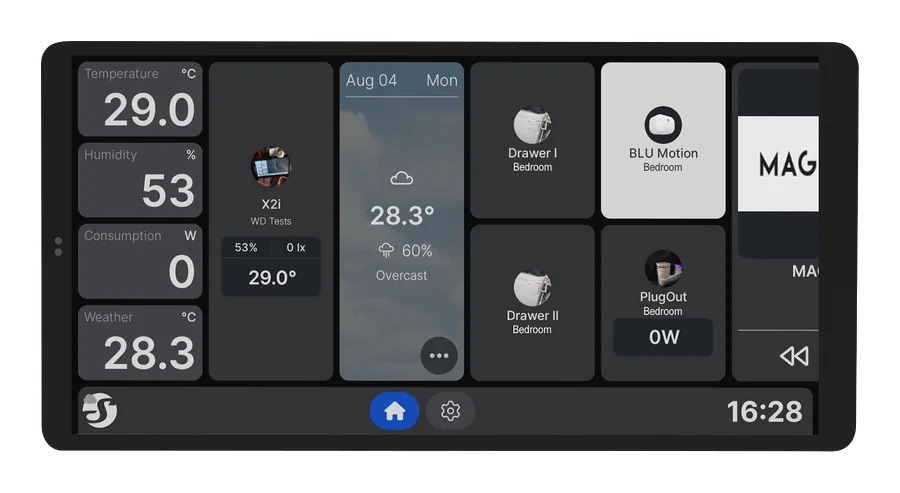
Also in Silver.
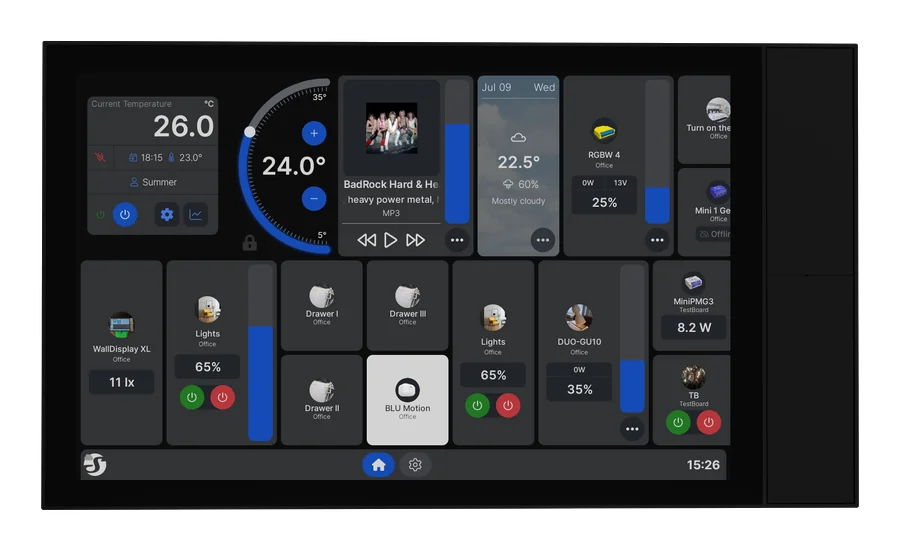
The large display. Also in Silver.
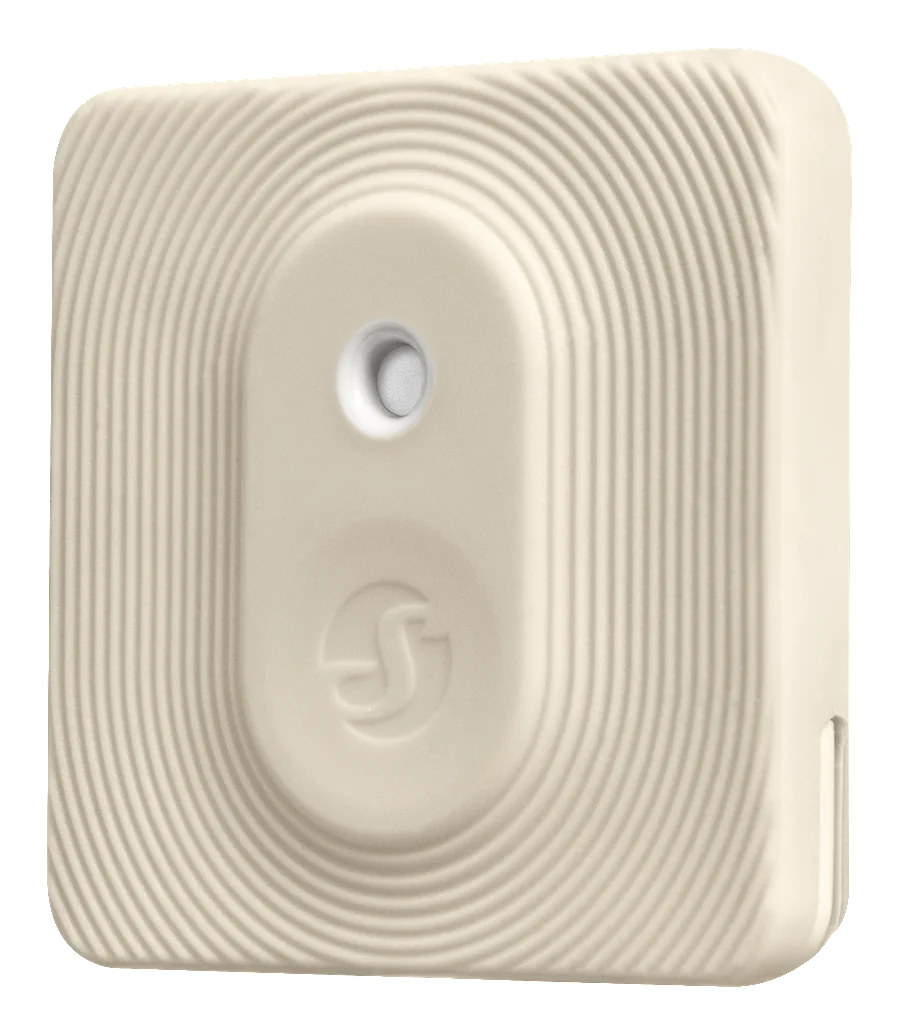
Battery room sensor without display. Also in Mocha and Black.
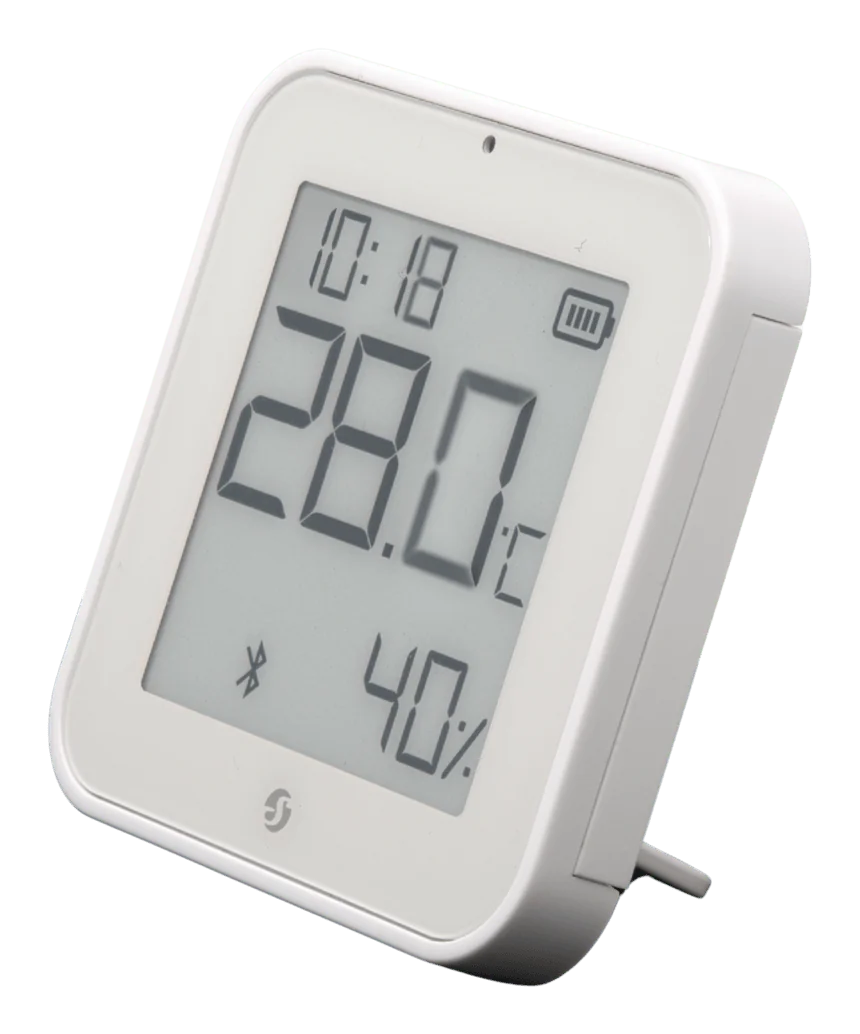
Battery room sensor with display. Also in Black.
Pair the sensor first: Settings → Bluetooth devices → Add, then put the sensor into pairing mode.
Settings → Input/Output → enable Thermostat.
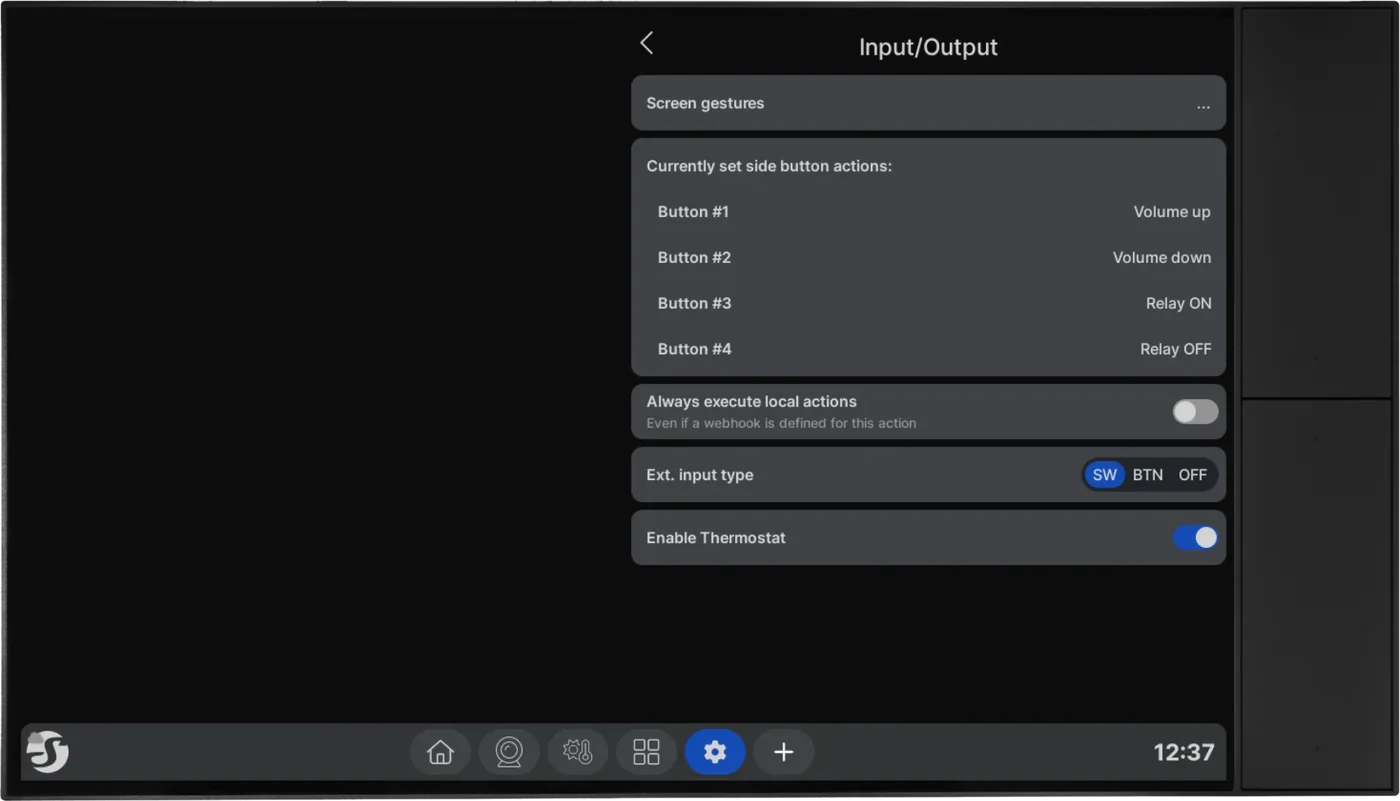
Tap the thermostat icon on the temperature card.
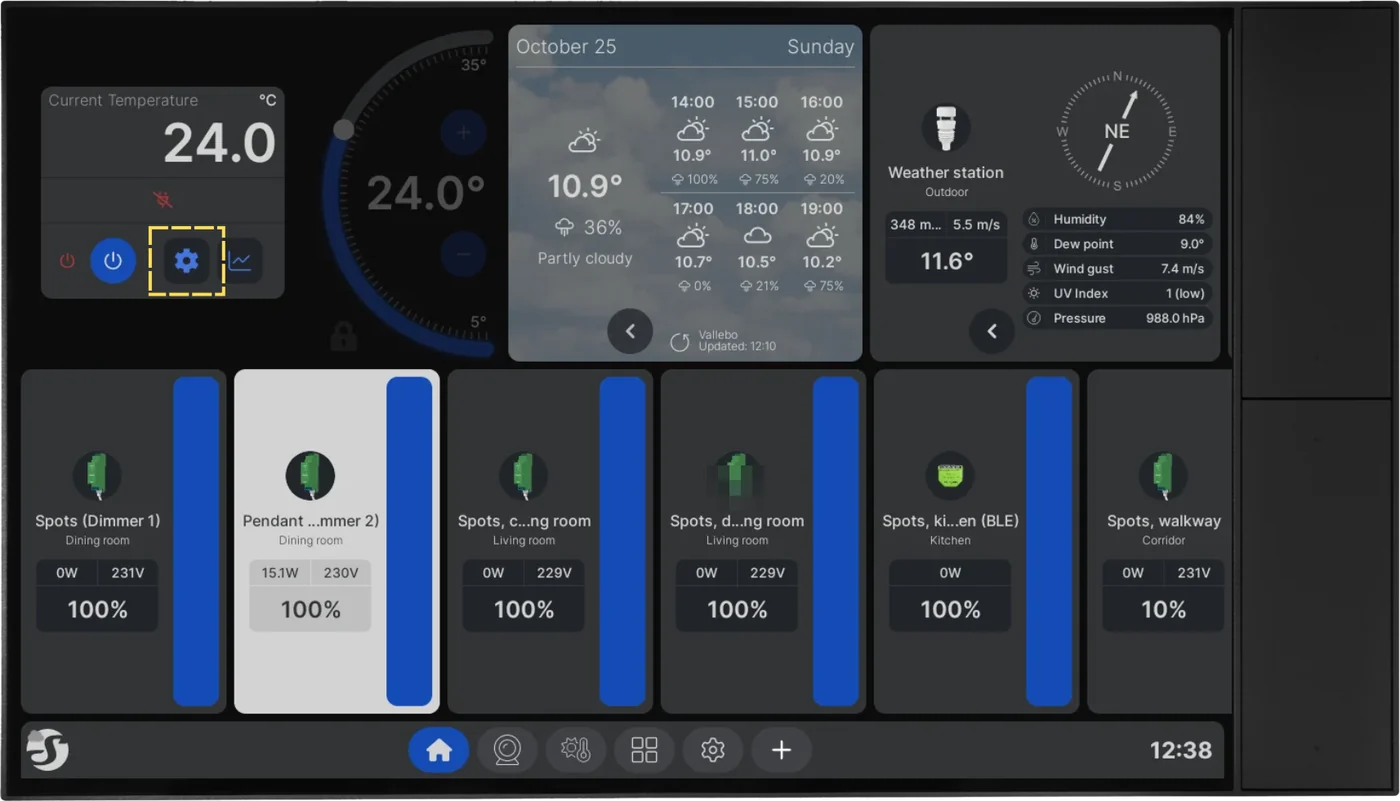
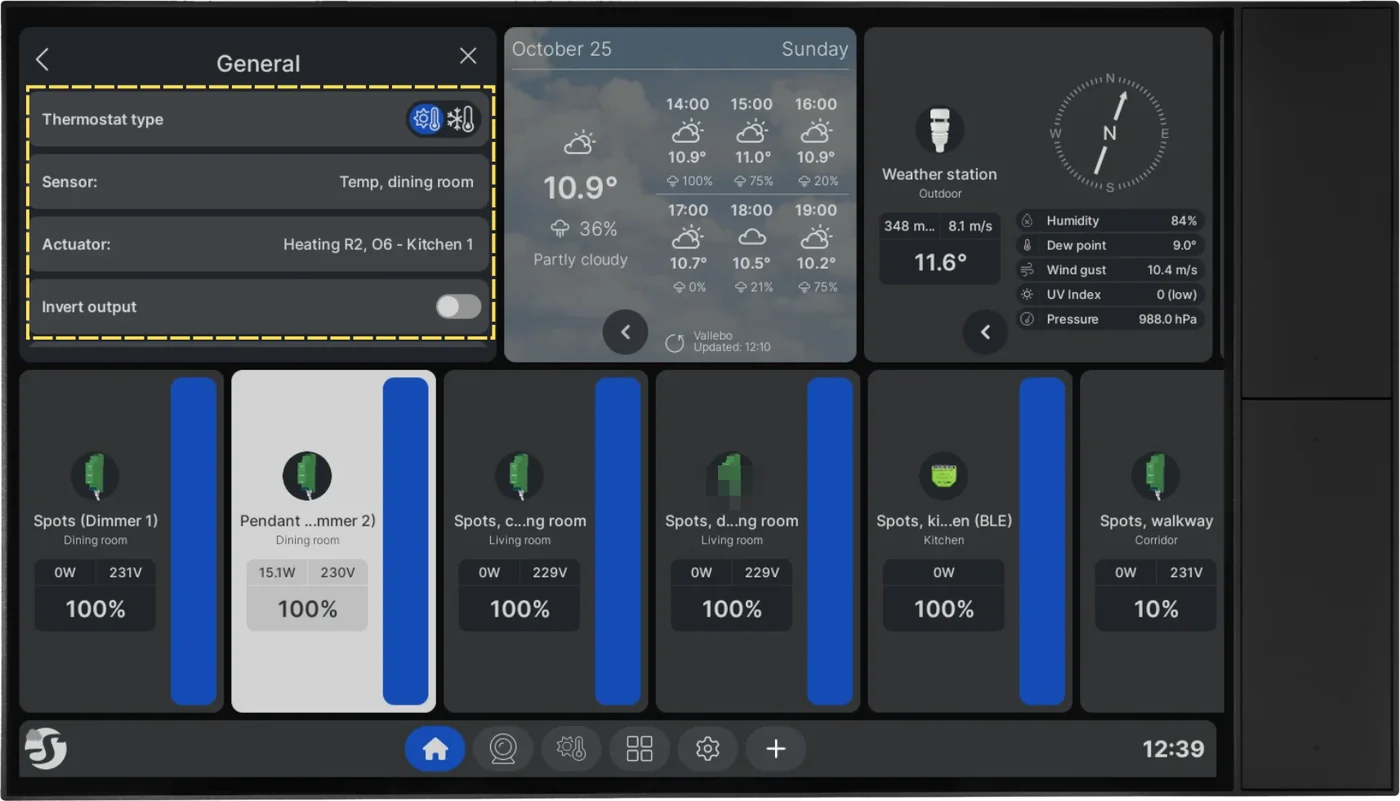
Under General, choose the thermostat type, the sensor and the actuator. The actuator can be a channel on another Shelly device, e.g. a Pro 4PM output named “Heating R2, O6 - Kitchen 1”. Leave Invert output off unless the actuator is normally open.
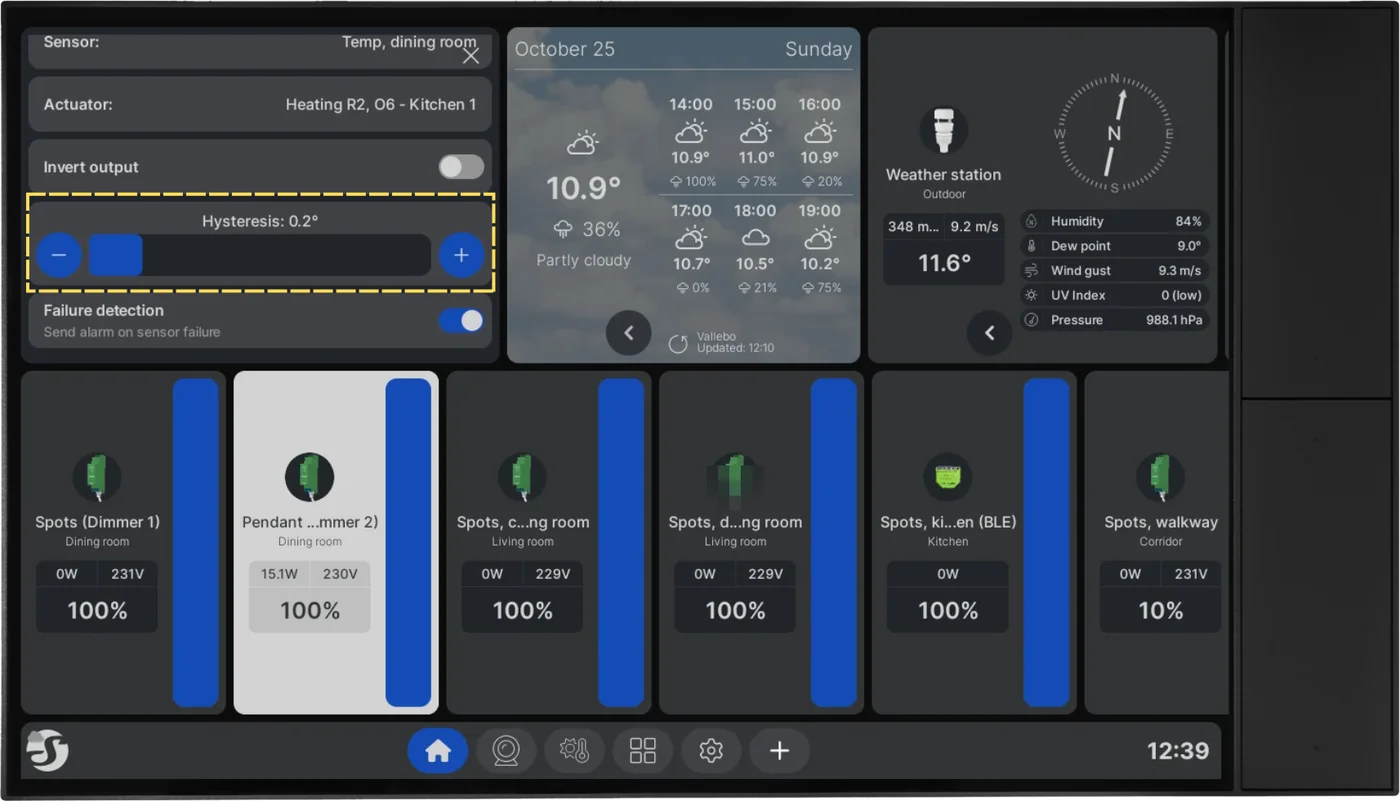
Set the hysteresis and switch on Failure detection, so the display reacts if the sensor stops reporting.
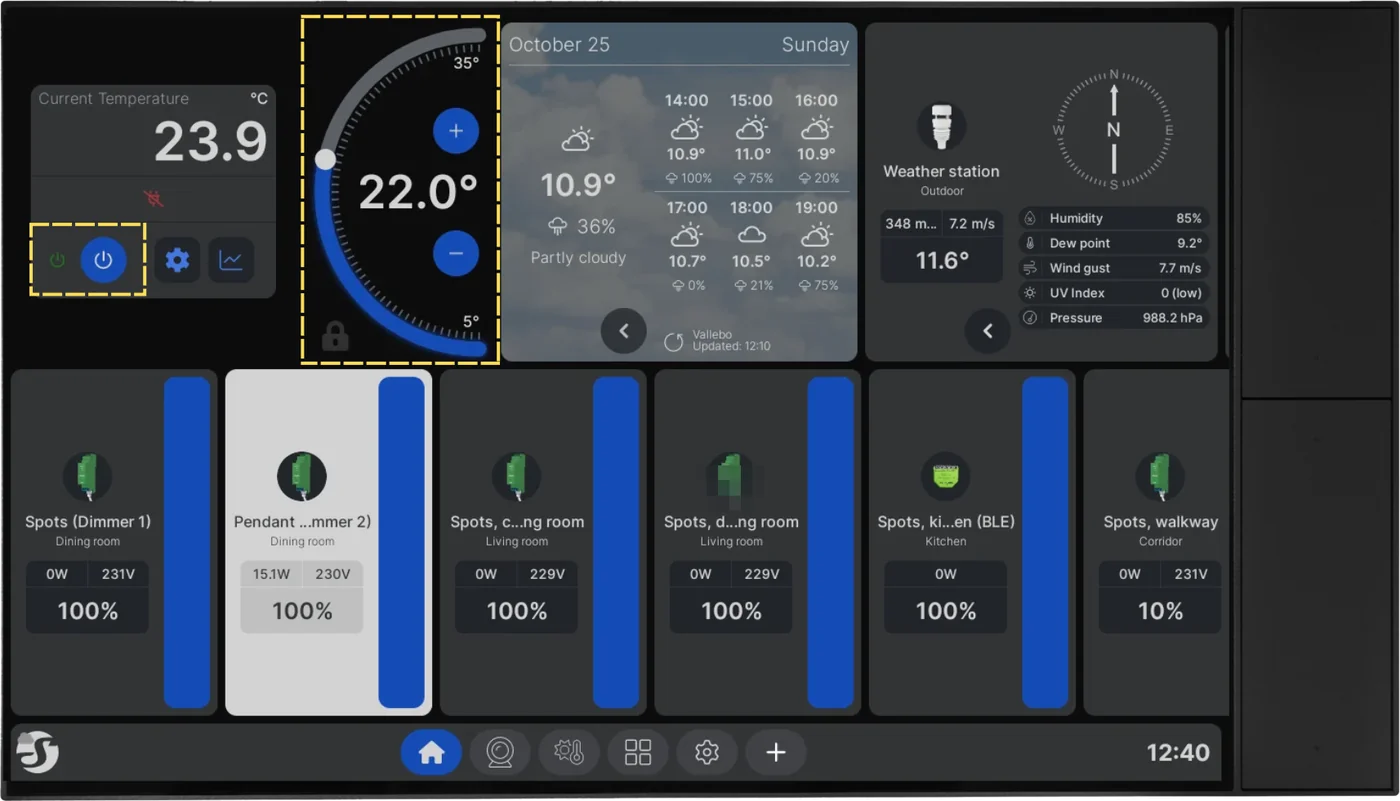
Set the target and activate the thermostat. It now runs on the display itself.
Setting up a heating control from scratch, including sensor pairing and the schedule. It covers the thermostat function generally, not only underfloor heating.
Loads YouTube when you press play. Watch on YouTube
By ShellyGuide on YouTube