1
Hardware
Power the device
Power the device. It should appear in the app by itself. If it does not, tap + and choose Wi-Fi or Bluetooth.
Getting started
Get a new Shelly onto Wi-Fi and into your account.
Updated: July 2026
Both methods end in the same place: a device on your Wi-Fi, claimed to your account, with cloud access enabled.
This guide covers two ways to add a device. Start with method 1, the app — it is what most installs need. Method 2, the web interface, is the one to use when method 1 fails: you set each parameter yourself, so you can see which step went wrong.
The app finds the device’s own access point, passes your credentials across, claims the device, disables the access point and enables cloud access — all without asking.
Power the device. It should appear in the app by itself. If it does not, tap + and choose Wi-Fi or Bluetooth.
In Shelly Smart Control, tap Add device. Allow location and local network permissions when prompted — on both iOS and Android the app cannot see nearby devices without them.
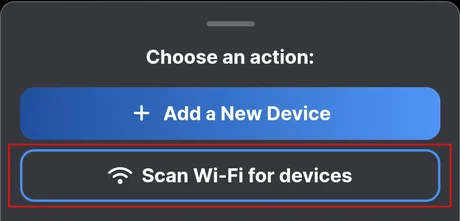
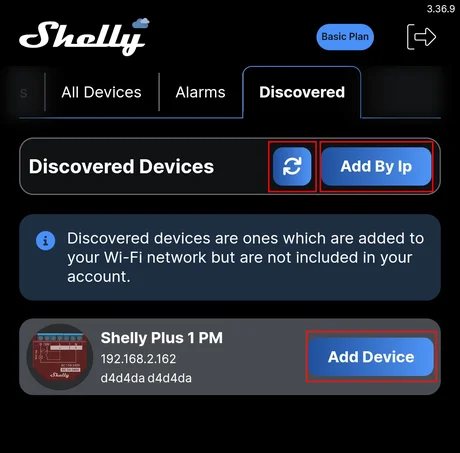
Pick the device from the list, then choose your 2.4 GHz network and enter the password. The device reboots onto your network.
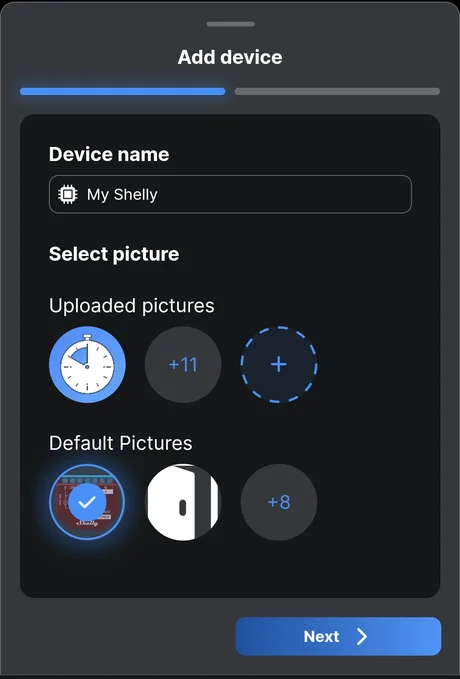
Give it a name that describes the load, not the device — “Kitchen ceiling”, not “Shelly 3”. Assign it to a room. Both are easier now, while you still know which relay feeds what.
You see exactly what the device is doing, you can update firmware before it ever reaches the cloud, and when something fails you know which step failed.
An unconfigured Shelly opens its own access point within about 30 seconds, named after the model and its ID — for example ShellyPlus1PM-A8032AB12C34.
On a phone or laptop, connect to the Shelly… network the device is broadcasting. Ignore the “no internet” warning — that is expected.
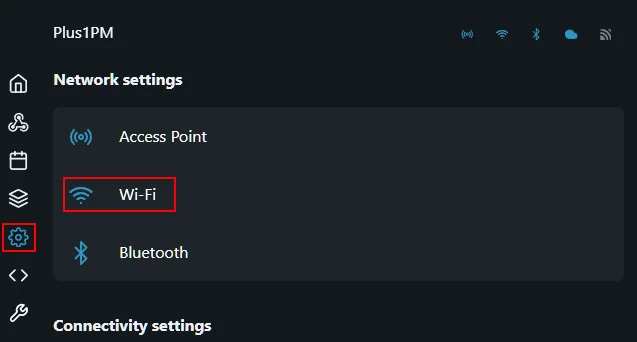
Browse to http://192.168.33.1, then go to Settings → Wi-Fi → Wi-Fi 1, enable it, enter the SSID and password, and save. The device joins your network and its access point stays up for now.
Reconnect to the normal network, find the device’s new IP address in your router, and open it. Under Settings → Firmware, install any update. See update device firmware.
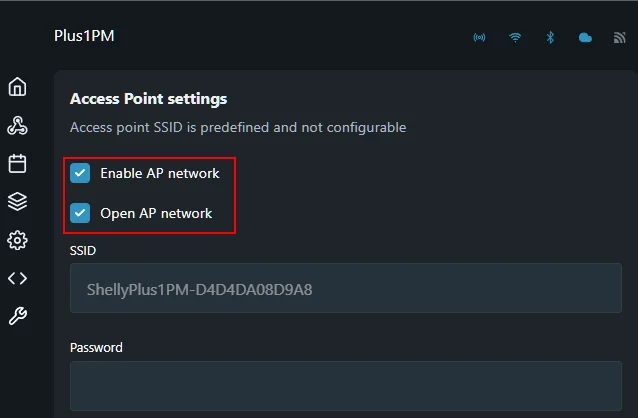
Under Settings → Cloud, enable cloud access. Open the app and add the device — it is on your network now, so the app finds it directly. Finally, disable the access point under Settings → Access Point, which this method leaves to you.
Adding a device three ways: a Wi-Fi device through the app, the same device through the web interface, and a Bluetooth device.
Loads YouTube when you press play. Watch on YouTube
By ShellyGuide on YouTube