1
App setting
Open the device and add a schedule
Open the device in Shelly Smart Control, or at control.shelly.cloud, and tap the calendar icon in the side rail. Then tap Add schedule.
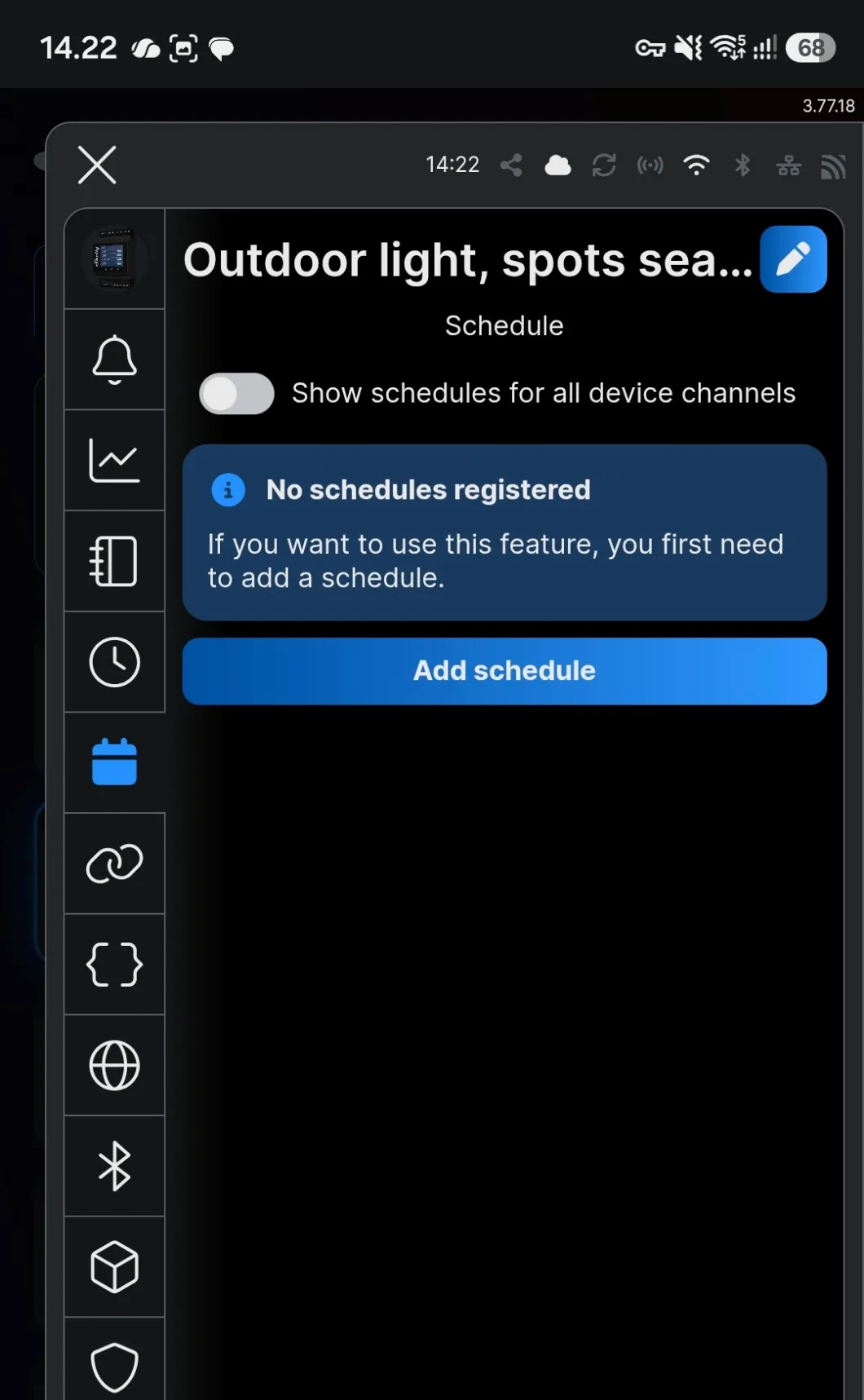
A schedule is the simplest automation Shelly offers, and it covers more real installations than anything else. Outdoor lights, a circulation pump, a towel rail, night setback on underfloor heating — all of it is a clock and an action.
The schedule lives on the device. It is created in the app, but it is stored and executed by the relay itself. Once it is set, the automation keeps running whether or not the internet does.
That is the difference from a scene, and there is a second one: a schedule built as a scene needs a premium plan, while the device’s own schedule does not. Check whether a schedule will do the job before building anything more complicated.
Six steps, set per device. A schedule that should cover several devices is either repeated on each, or built as a group action — see grouping.
Open the device in Shelly Smart Control, or at control.shelly.cloud, and tap the calendar icon in the side rail. Then tap Add schedule.
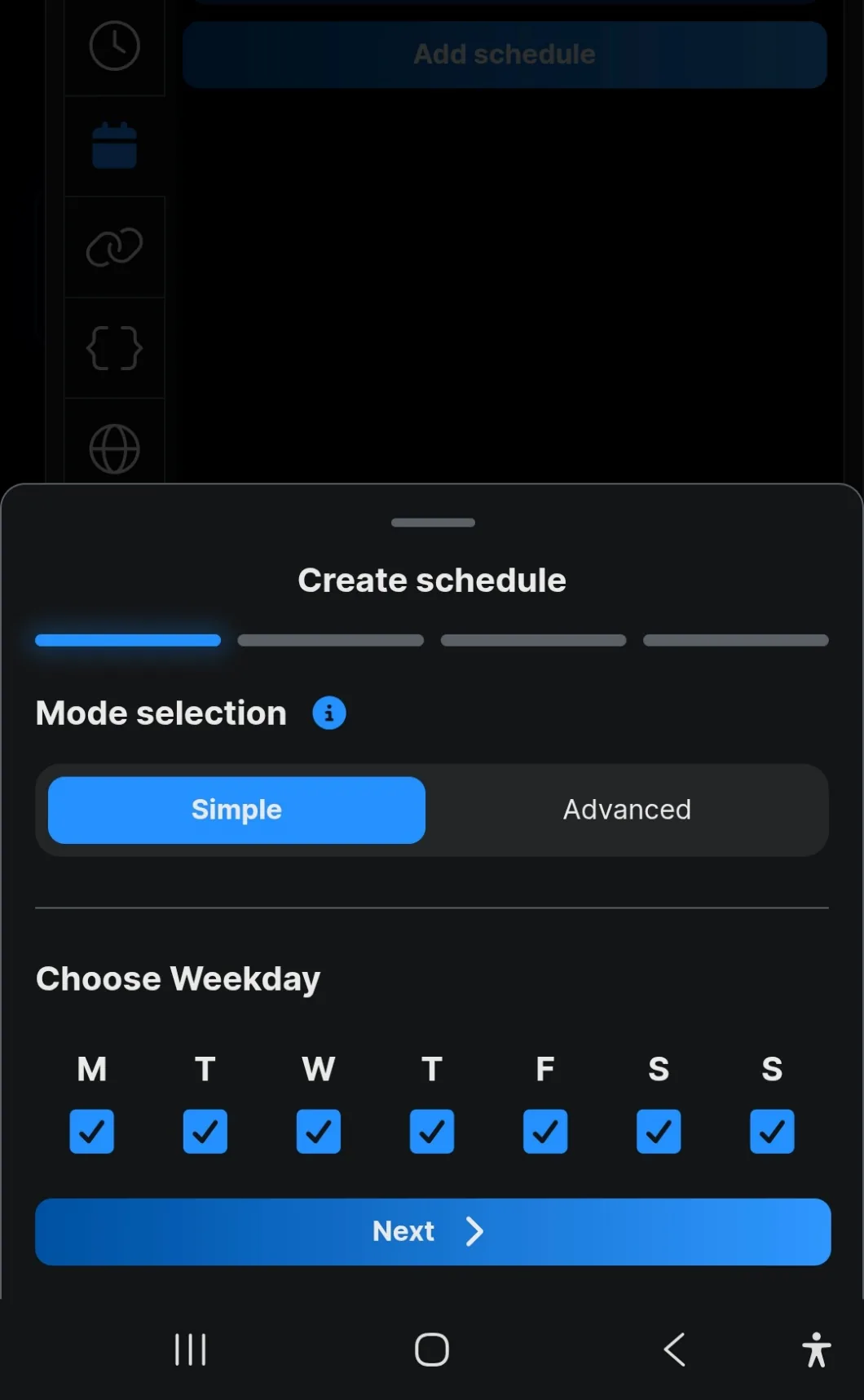
Tick the days the schedule should run on. Advanced mode opens more options; Simple covers almost everything.
Days matter more than people expect. An office light that runs Monday to Friday and a home light that runs every day are the same schedule with a different selection — and getting it wrong is the difference between a saving and a complaint.
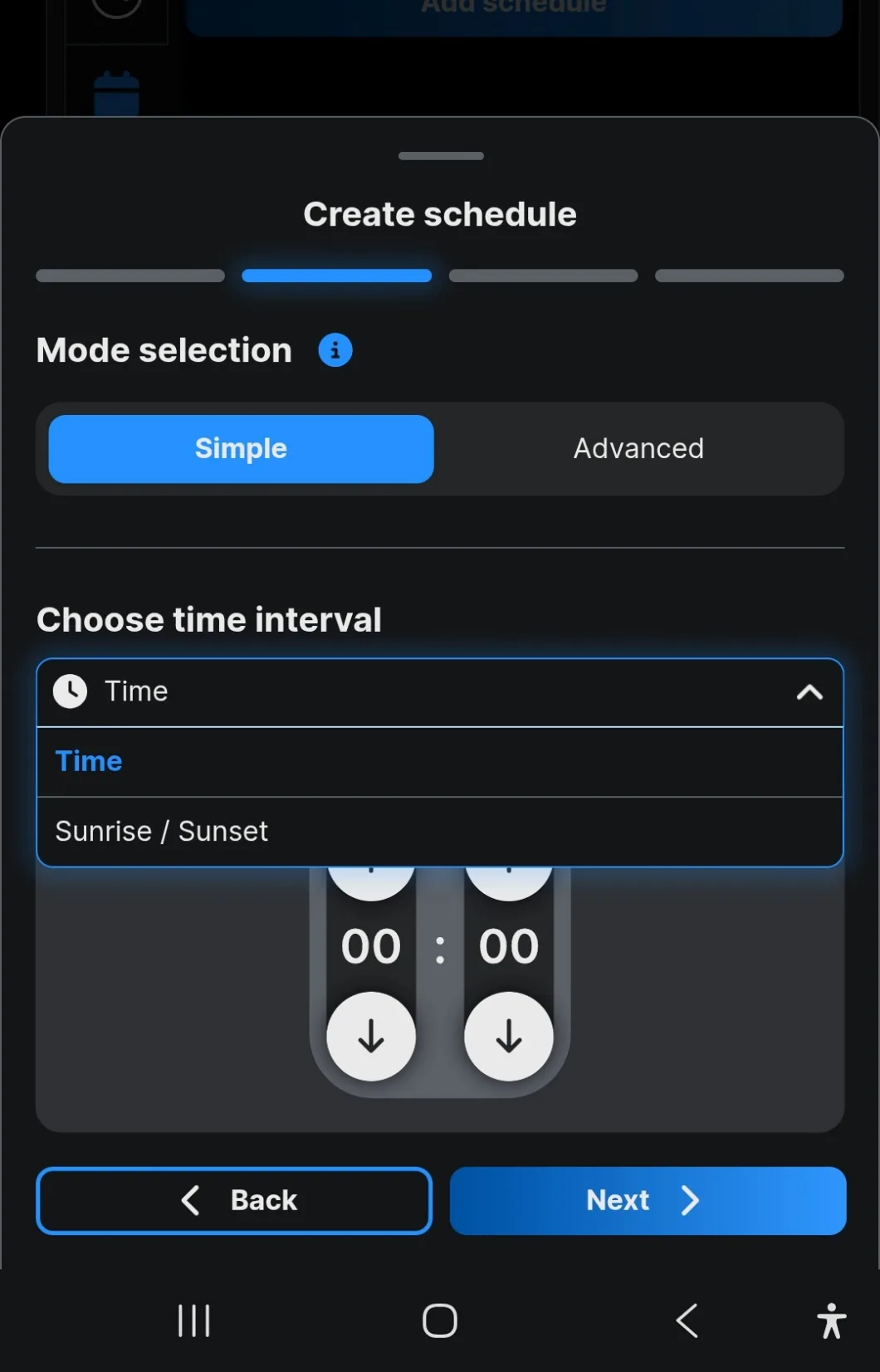
The drop-down is where a clock becomes a season. Time is a fixed hour and minute. Sunrise / Sunset follows the sun, with an offset before or after.
For anything outdoors, pick the sun. Sunset moves by several hours across the year in the Nordics, so a fixed time is wrong for most of it.
Use the offset. Lights at exactly sunset come on while it is still light; thirty minutes after usually looks right. Off at sunrise minus thirty minutes avoids lighting an empty street in daylight.
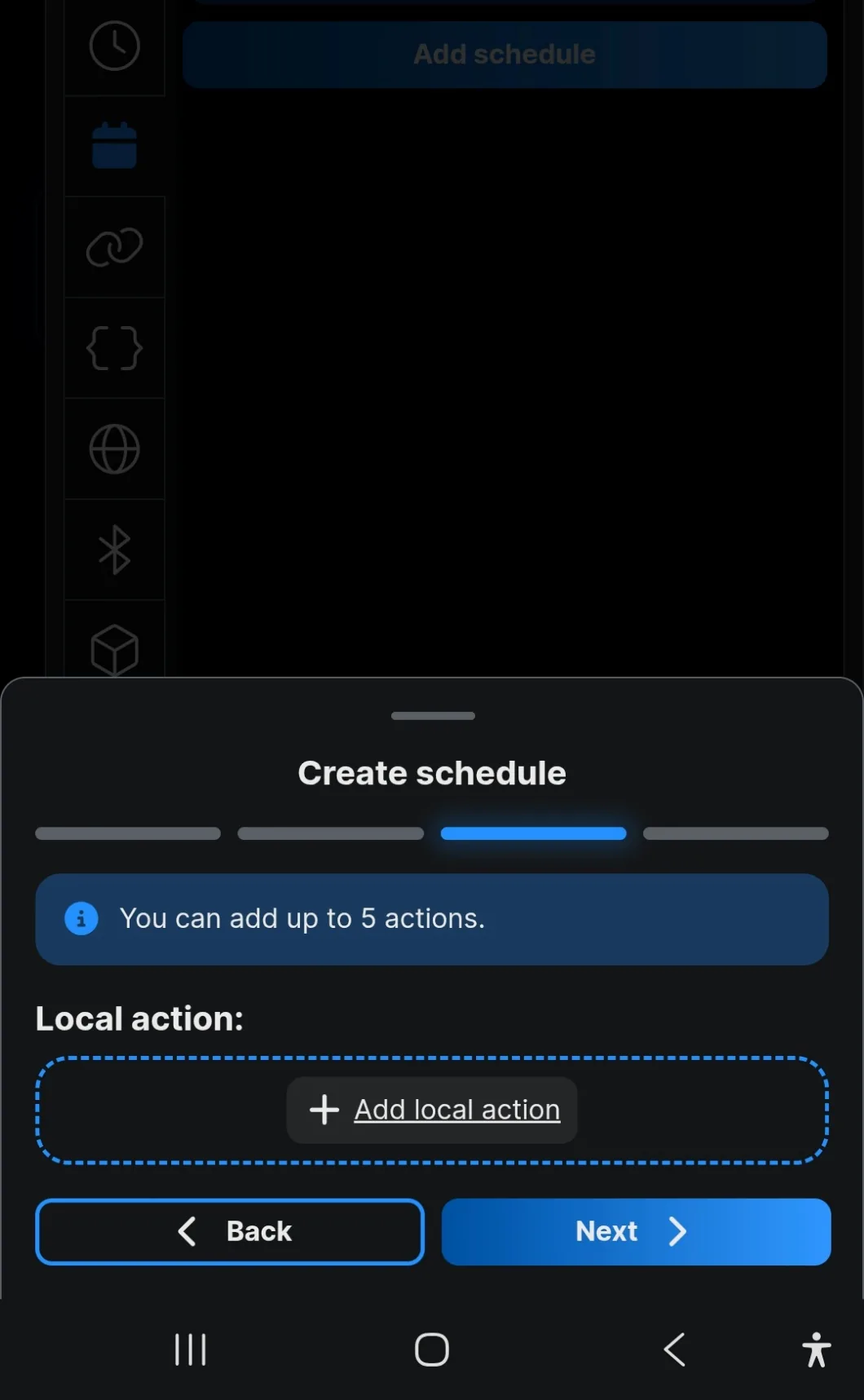
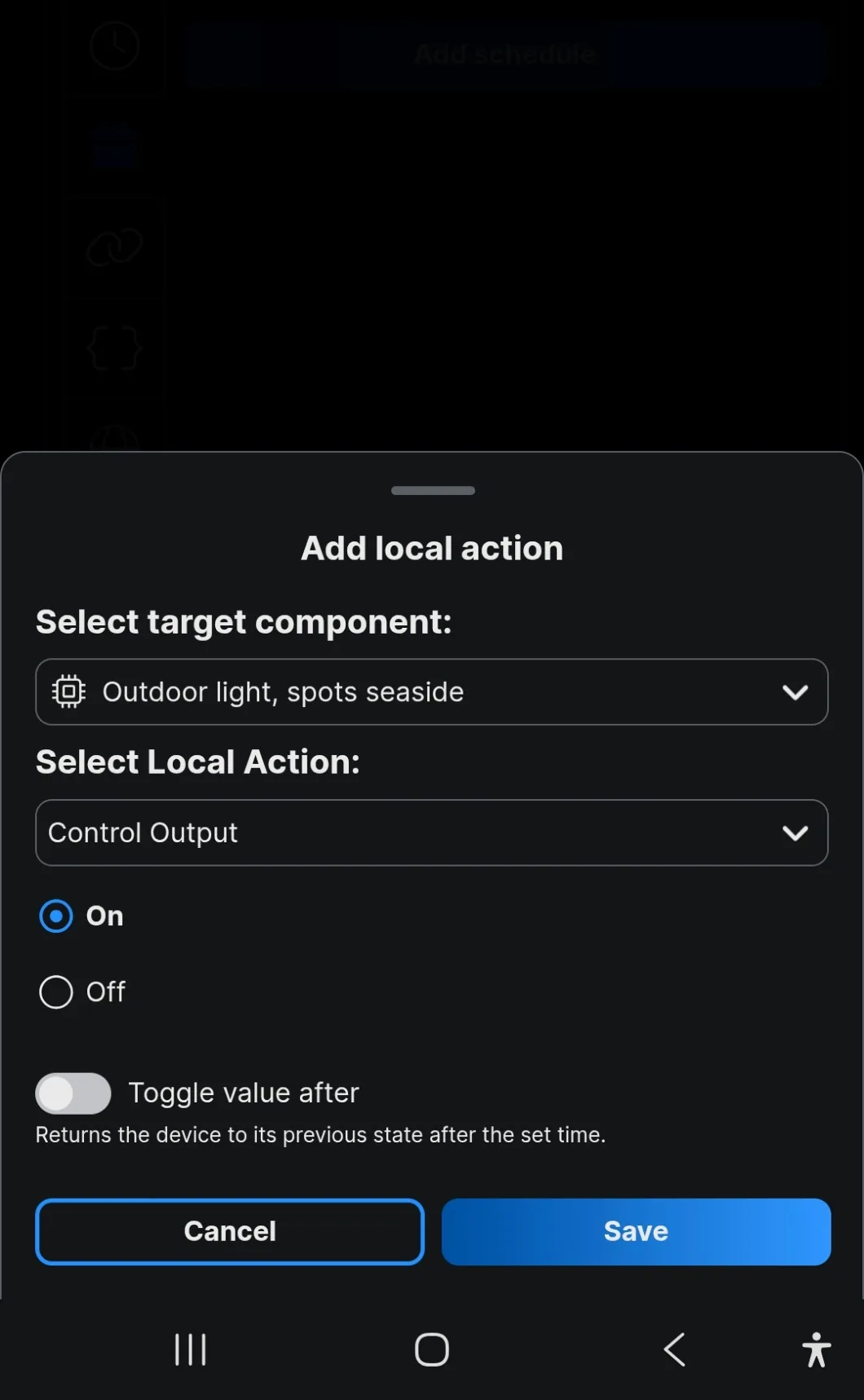
Tap Add local action to say what the device should do at that moment. A schedule can carry up to five.
Five actions at one moment is not the same as a schedule with a duration. On at 16:00 and off at 23:00 is two schedules on the same device, because it is two moments.
Pick the target component, then the action. On a relay that is on or off; on a dimmer you can also set a brightness, which is what makes a schedule useful for lighting rather than just switching.
Toggle value after returns the device to its previous state once the set time has passed. It turns a single schedule into an on-and-back-off without a second one.
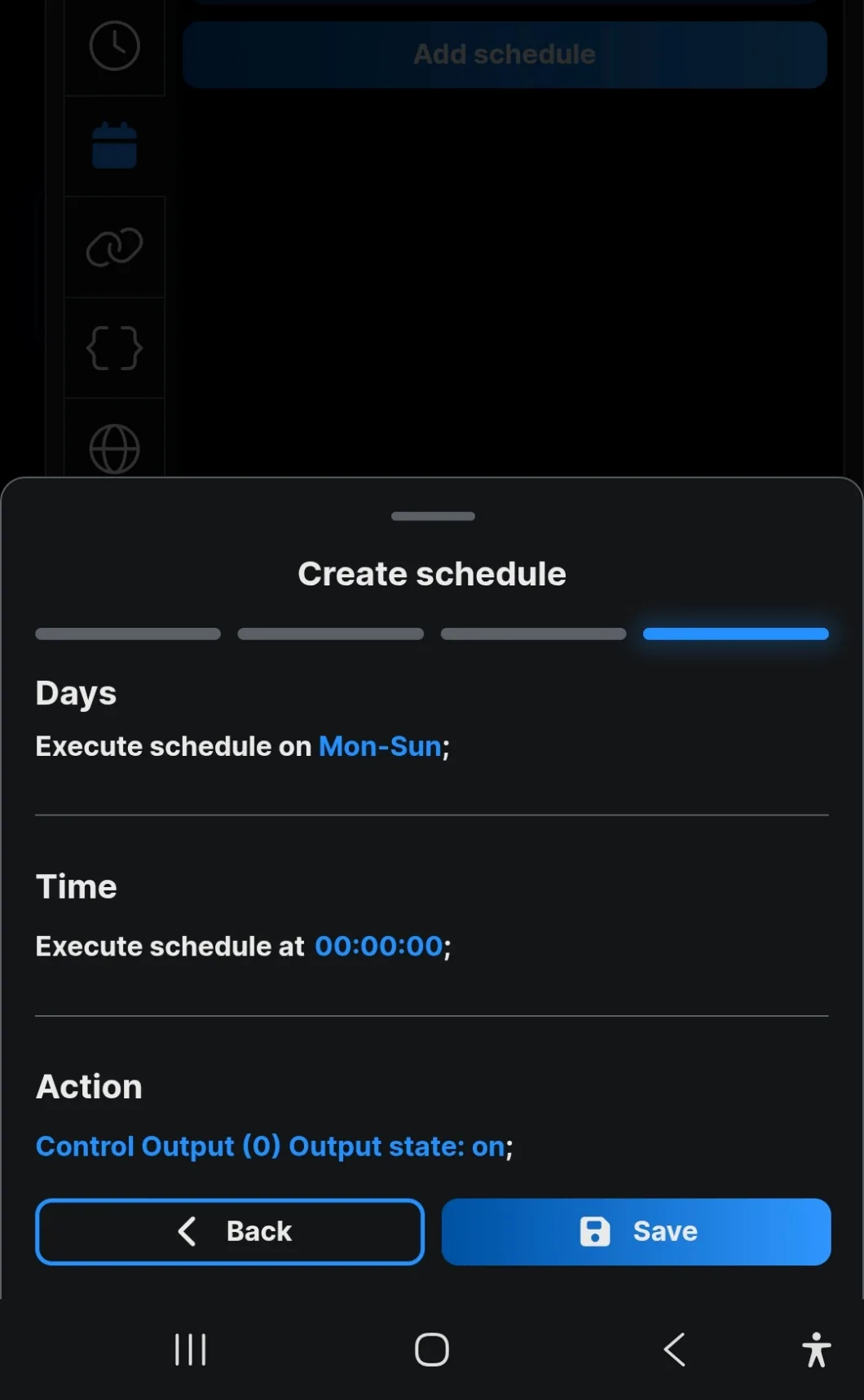
The last screen lists days, time and action in one place. Read it before saving — it is the only view that shows all three at once.
Saved schedules appear as boxes on the device’s schedule page. Each can be switched off without being deleted, which is useful for a seasonal automation you want back in the autumn. Two schedules that overlap will both run, and the later one wins.
Setting a sunrise and sunset schedule for outdoor lighting, start to finish.
Loads YouTube when you press play. Watch on YouTube
By ShellyGuide on YouTube