- Home
- Installations
- Wi-Fi rescue plug
Installations
Wi-Fi rescue plug
Leave a prepared Shelly plug with the customer. When the router is replaced, it brings every Shelly back online so you can move them to the new network.
Updated: October 2026
What you need
- A mains-powered Shelly Gen2 or Gen3 plug, for example a Shelly Plug M Gen3.
- The customer’s Wi-Fi name and password, exactly as they are.
- Devices with Shelly Cloud enabled, in the customer’s account in Shelly Smart Control. The app reaches them through the plug only via the cloud. A device that runs locally has to be moved on its own, through its own access point.
Set up the plug at handover
1. Open the plug’s web interface
Plug it in. On your phone, join the plug’s own network — its name starts with ShellyPlug — and open http://192.168.33.1
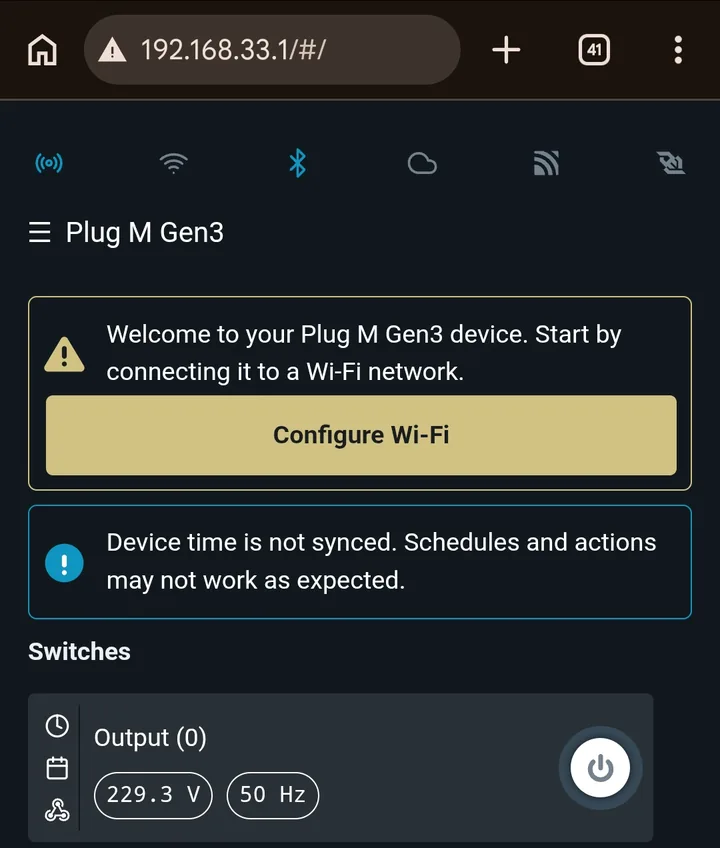
2. Connect it to the customer’s Wi-Fi
Under Wi-Fi 1 settings, turn on Enable Wi-Fi, choose the customer’s network, enter the password, and press Save.
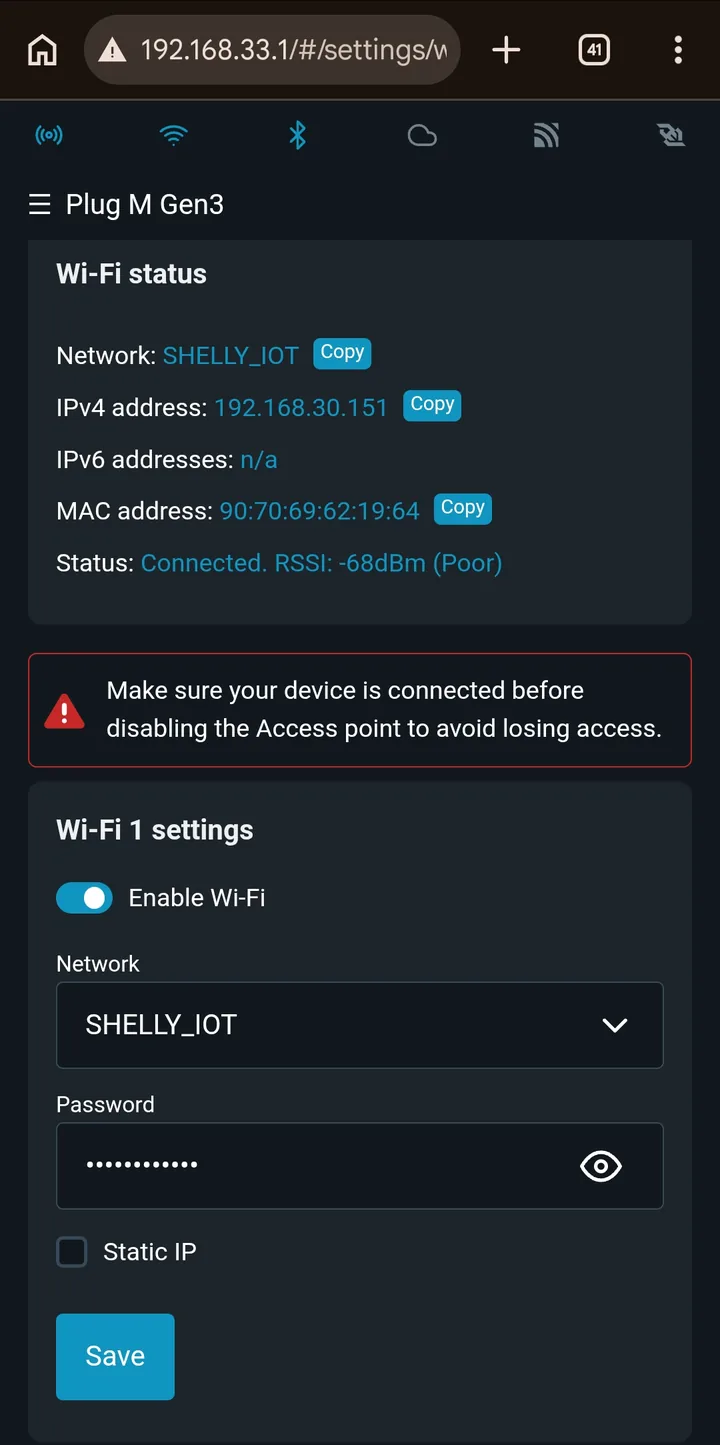
3. Update the firmware
Settings → Firmware — install the latest firmware.
4. Copy the customer’s network — last
Under Access point & range extender settings, set SSID and Password to the customer’s Wi-Fi name and password, exactly as they are, capitals included. Tick Enable range extender and press Save.
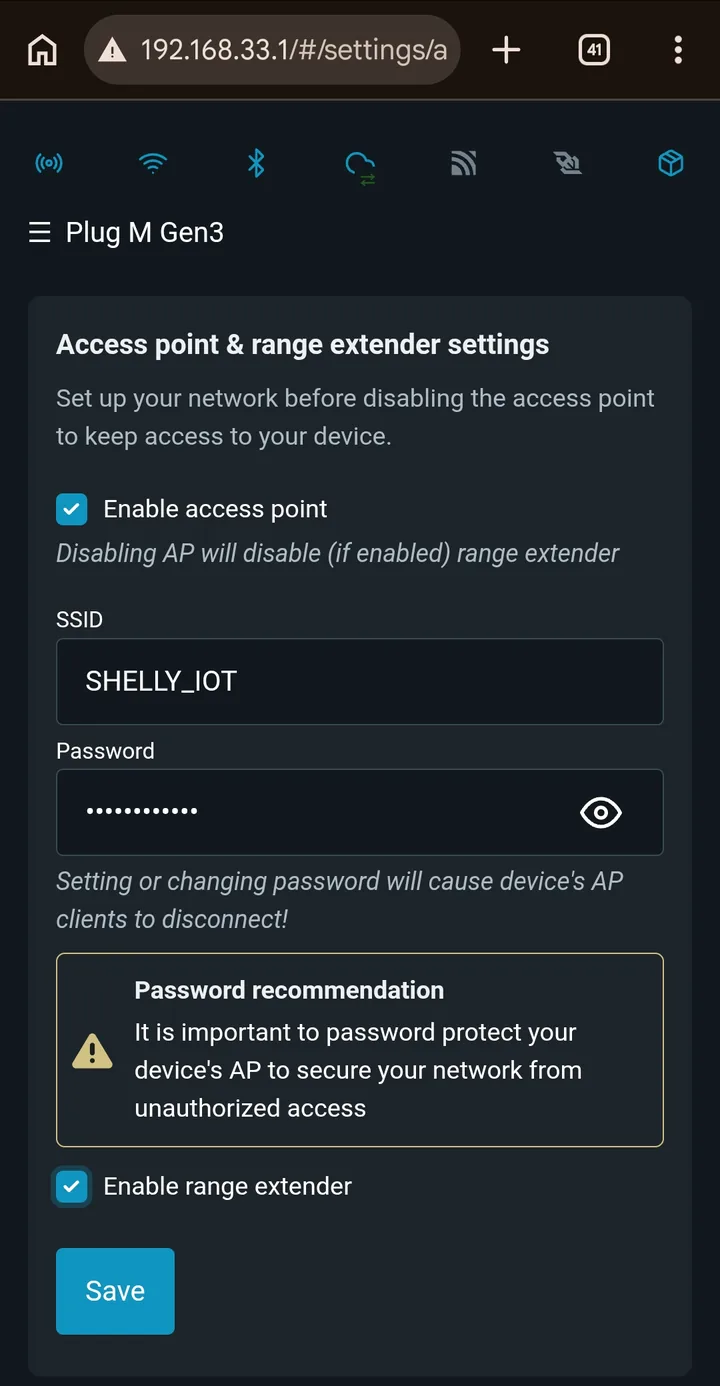
This is the last step because it makes the plug look like the customer’s router. Your phone loses the connection when you save.
5. Unplug it and put it away
Unplug it straight away. Fill in the customer sheet and leave the plug in a fixed place at the customer’s home together with it.
Use it after a router change
1. Plug it in and open the plug
Plug it into a socket. Connect your phone to the OLD network name with the OLD password – that is now the plug. Your phone may say “no internet” – choose to stay connected. Open 192.168.33.1.
2. Connect the plug to the new network
Under Wi-Fi 1 settings, choose the new network, enter its password, and press Save.
The old devices now go online through the plug.
3. Open Wi-Fi batch change
In Shelly Smart Control, open a room, open the room’s menu, and tap Wi-Fi batch change.
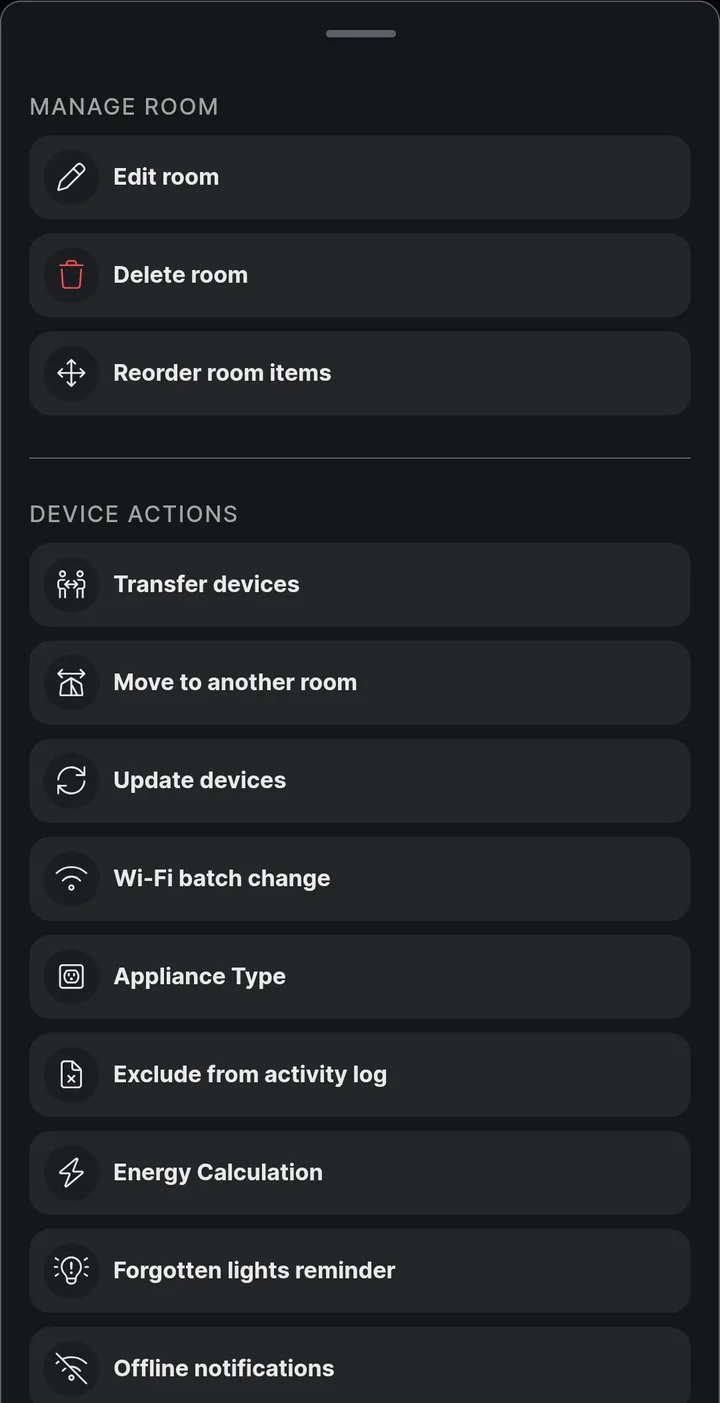
4. Select the devices
Tap Select All, then Change.
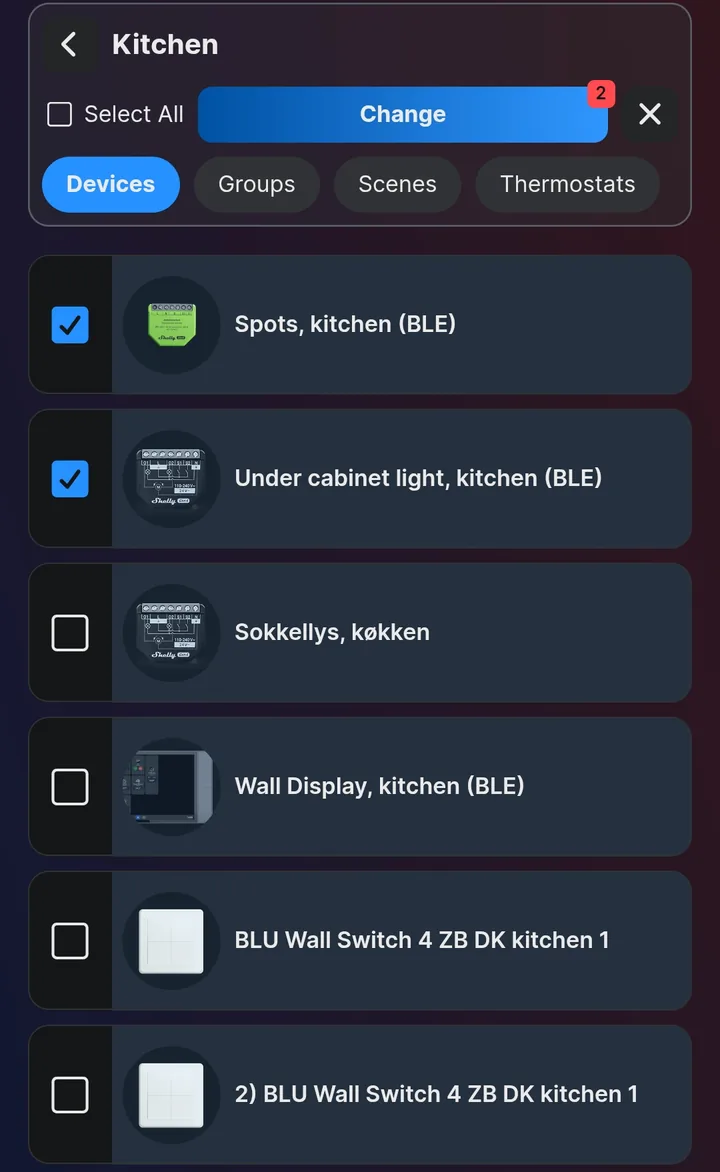
5. Choose Wi-Fi 1
Choose Wi-Fi 1 and tap Next.
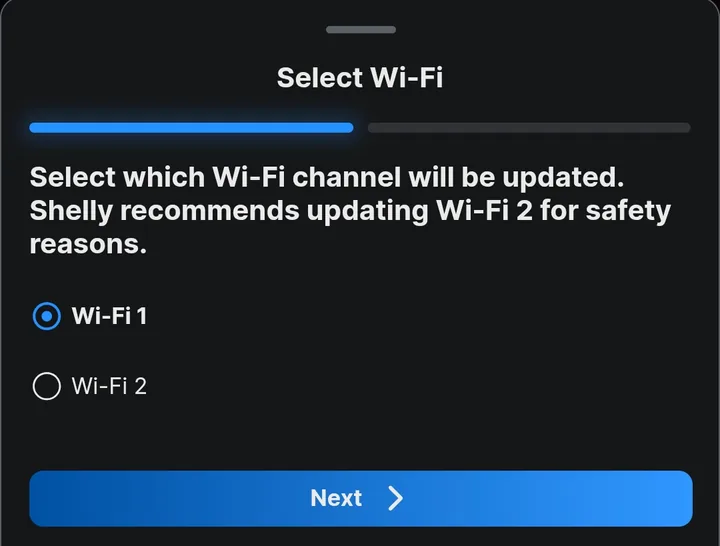
The app recommends Wi-Fi 2. Here it has to be Wi-Fi 1. With Wi-Fi 2, a device stays on the plug for as long as it can see the old network, and its place on the plug is never freed.
6. Enter the new network
Enter the new network’s name and password, and tap Save.
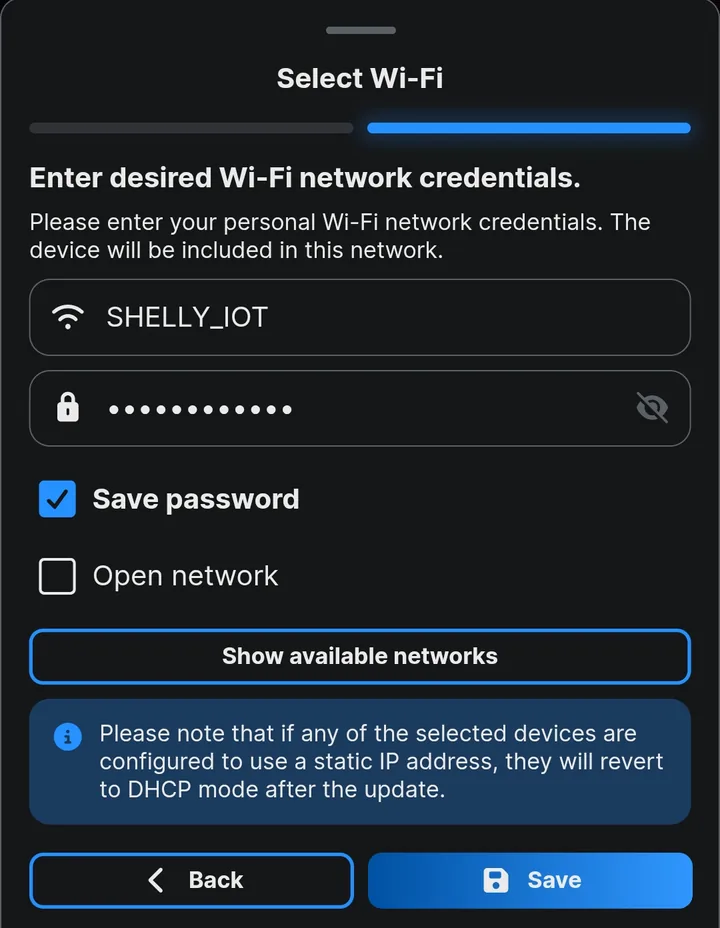
Do one device first and watch it come online on the new network before you move the rest. A device with a static IP address is switched to DHCP, as the app says.
7. Repeat room by room
Do the next room the same way. Carry the plug closer to devices it does not reach.
8. Ready the plug for next time
When every device has moved, set the plug’s SSID and Password to the new network’s name and password, as in step 4 of the setup. Unplug it and put it back with an updated note.
Limits
- 2.4 GHz only. The plug and the devices use 2.4 GHz, so the new router has to offer it.
- A network name of 29 characters or fewer. That is the longest name the plug’s access point can take.
- A password of at least 8 characters.
- A limited number of devices at a time — typically 4–5. It matters less than it sounds: a device leaves the plug as soon as it has the new network, and the next one can join.
How it works
A Shelly does not remember a router. It remembers a Wi-Fi name and a password, and connects to whatever answers to them. If the new router keeps the old name and password, the devices reconnect on their own and the plug is not needed.
Every Shelly also runs its own access point. Range extender lets other Shelly devices join that access point and reach the internet through the plug’s own Wi-Fi connection. With the old name and password on the access point, the old devices take the plug for their router.
Shelly to Shelly without Wi-Fi uses the same two functions to run devices with no router at all.