Dimming with BLU Wall Switch

Application Guide

Dimming with BLU Wall Switch

Pair a Shelly BLU wall switch with a Shelly relay or dimmer over Bluetooth — fully local, no WiFi or internet required.

Last updated: April 2026

What this guide covers

Pair a Shelly BLU Wall Switch directly with a Shelly relay or dimmer over Bluetooth. The connection is fully local: no WiFi, no internet, and no cloud account is needed for the buttons to control the light.

Direct pairing gives you instant response and smooth dimming. Both devices must be within Bluetooth range — about 10 meters indoors with normal walls.

Requirements

  • A Shelly relay or dimmer (Gen3, Gen4 or Pro) with firmware 1.7.4 or newer.
  • A Shelly BLU Wall Switch 4 ZB (or BLU RC Button 4 / BLU Button Tough 1).
  • Bluetooth range: both devices within roughly 10 meters indoors. Thick walls or large metal surfaces shorten the range.
  • For Method A only: a 230 V momentary spring switch already wired to the SW input of the relay or dimmer.

Recommended product

Shelly BLU Wall Switch 4 ZB DK
Anbefalet til Danmark

Anbefalet til danske afbrydersystemer

Shelly BLU Wall Switch 4 ZB DK er specifikt designet til danske afbrydersystemer som LK FUGA. Tilgængelig i hvid (EAN 3800238073404) og grå (EAN 3800238073411).

Se Knowledge Base →

Two ways to mount your BLU Wall Switch — choose the version that fits your switch system.

Shelly BLU Wall Switch 4 ZB Stand-Alone
Option 1

Stand-Alone version

Mounts directly to the wall with the included double-sided adhesive tape. No frame or adapter required.

  • Shelly BLU Wall Switch 4 ZB (Stand-Alone)
  • EAN 3800238073053
Shelly BLU Wall Switch 4 ZB White with adapter
Option 2

Standard version with adapter

Use this version when you want the switch to sit inside an existing frame. Pick the matching adapter for your switch system:

  • Shelly BLU Wall Switch 4 ZB White — EAN 3800238072551
  • Gira / Merten / Exxact / Elko adapter — EAN 3800235266922
  • Legrand adapter — EAN 3800235266953
  • Busch-Jaeger / Jussi adapter — EAN 3800235266946

Pairing process

Pairing takes 4 simple steps. The first step has two methods — choose the one that fits your installation. Steps 2, 3 and 4 are identical regardless of method.

Activate pairing mode on the relay/dimmer

Choose your method based on whether you have a physical switch wired to the relay or dimmer.

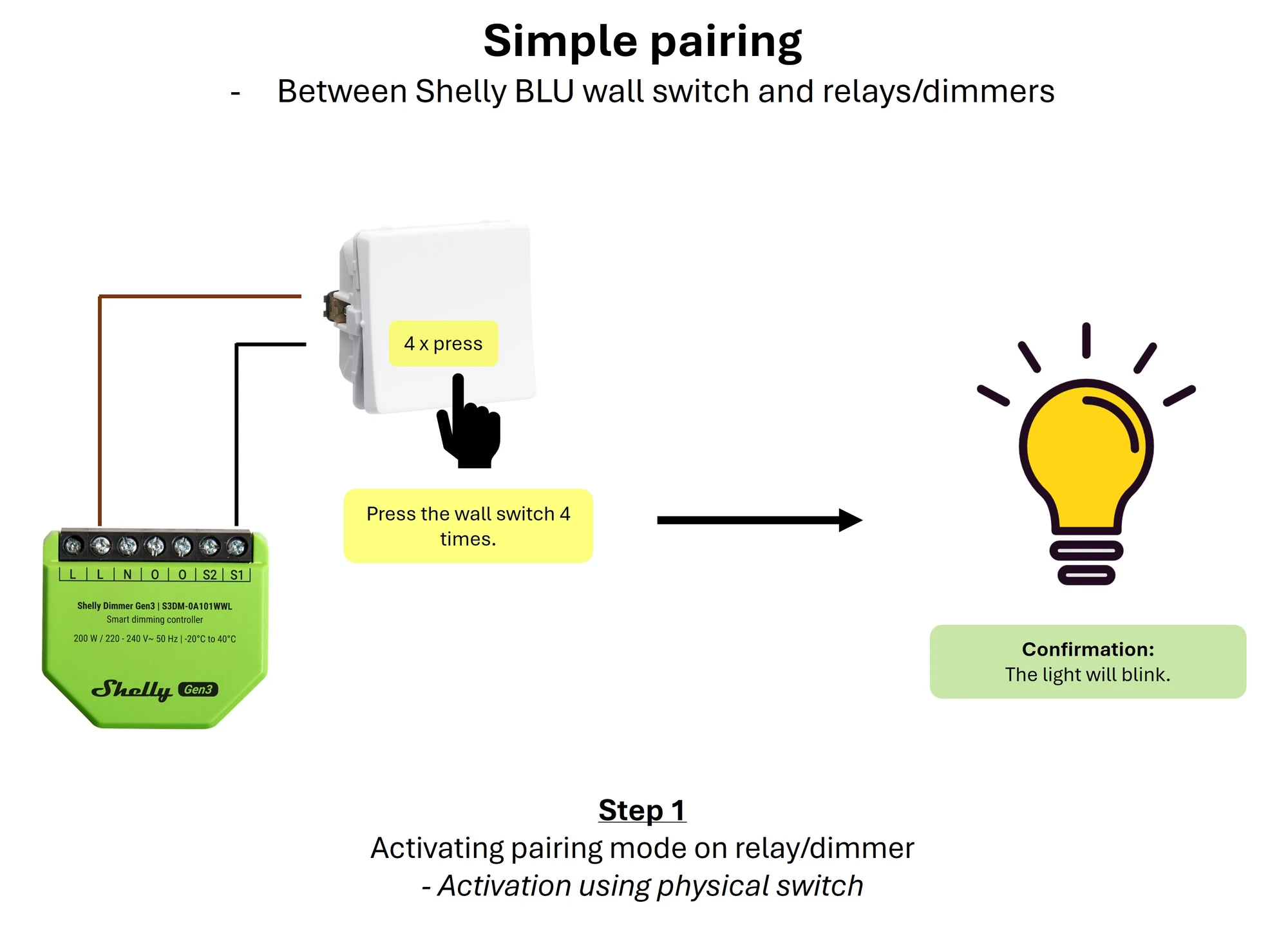
When to use: You have a 230 V momentary spring switch already wired to the SW input of the relay or dimmer.

Steps:

  1. Press the connected physical switch 4 times quickly.
  2. The light will blink 1 time to confirm pairing mode is active.
Press the connected physical switch four times to activate pairing mode.
Press the connected switch 4 times — the light blinks once.

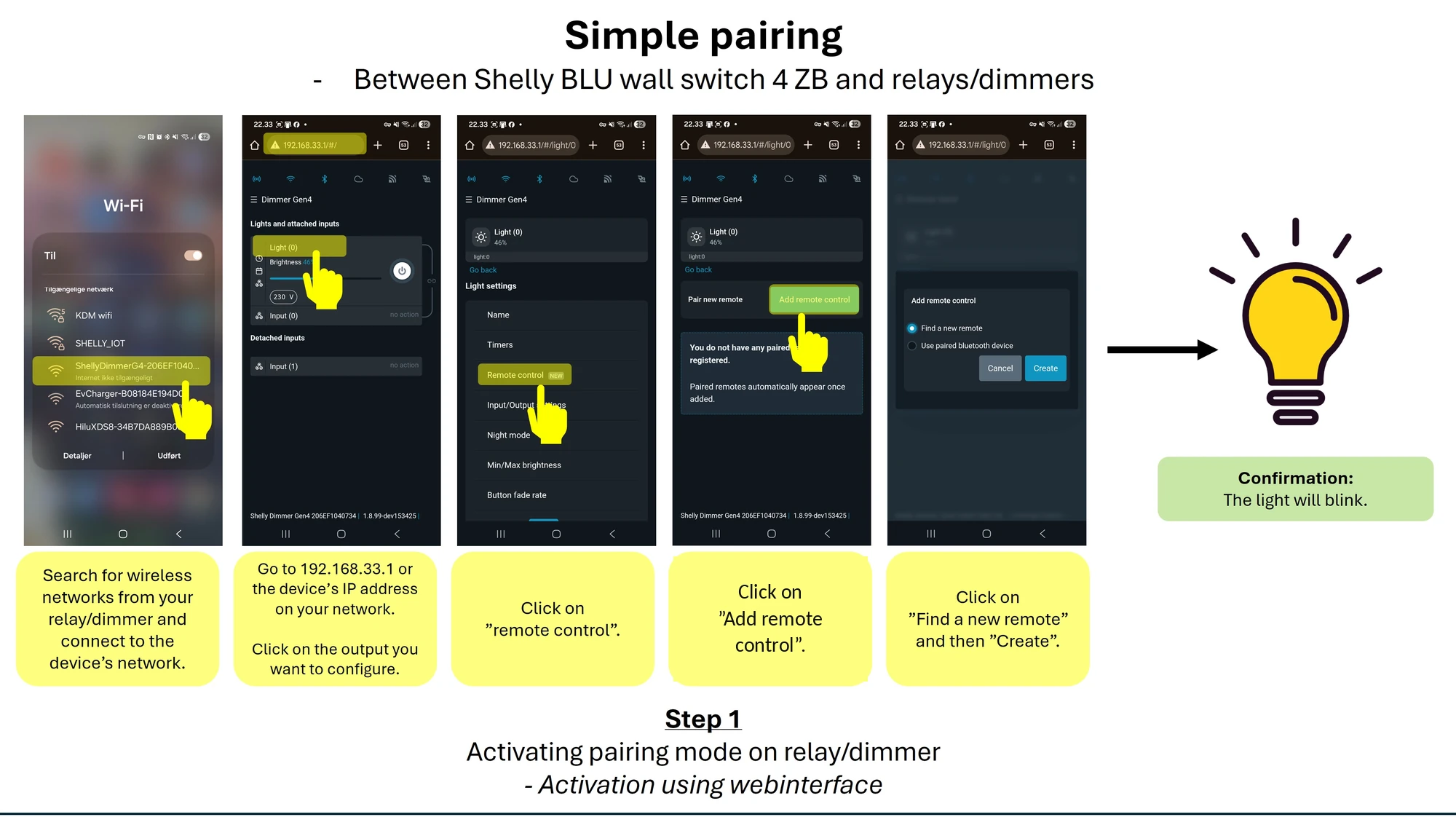
When to use: You don’t have a physical switch wired to the relay or dimmer. This is the most common scenario when you want to use a battery switch as your only control.

Steps:

  1. From your phone, tablet or computer, search for wireless networks and connect to the relay/dimmer’s WiFi access point (e.g. ShellyDimmerG4-XXXXXX).
  2. Open a browser and go to 192.168.33.1 — or the device’s IP address on your existing network if it is already connected.
  3. Tap on the device output (e.g. Light (0)).
  4. Scroll down and tap Remote control.
  5. Tap Add remote control.
  6. Select Find a new remote and tap Create.
  7. The light will blink 1 time to confirm pairing mode is active.
In the device web interface, navigate to Remote control and add a new remote.
Navigate to Remote control → Add remote control → Find a new remote → Create. The light blinks once.

Activate pairing mode on the BLU wall switch

This step is the same for both methods.

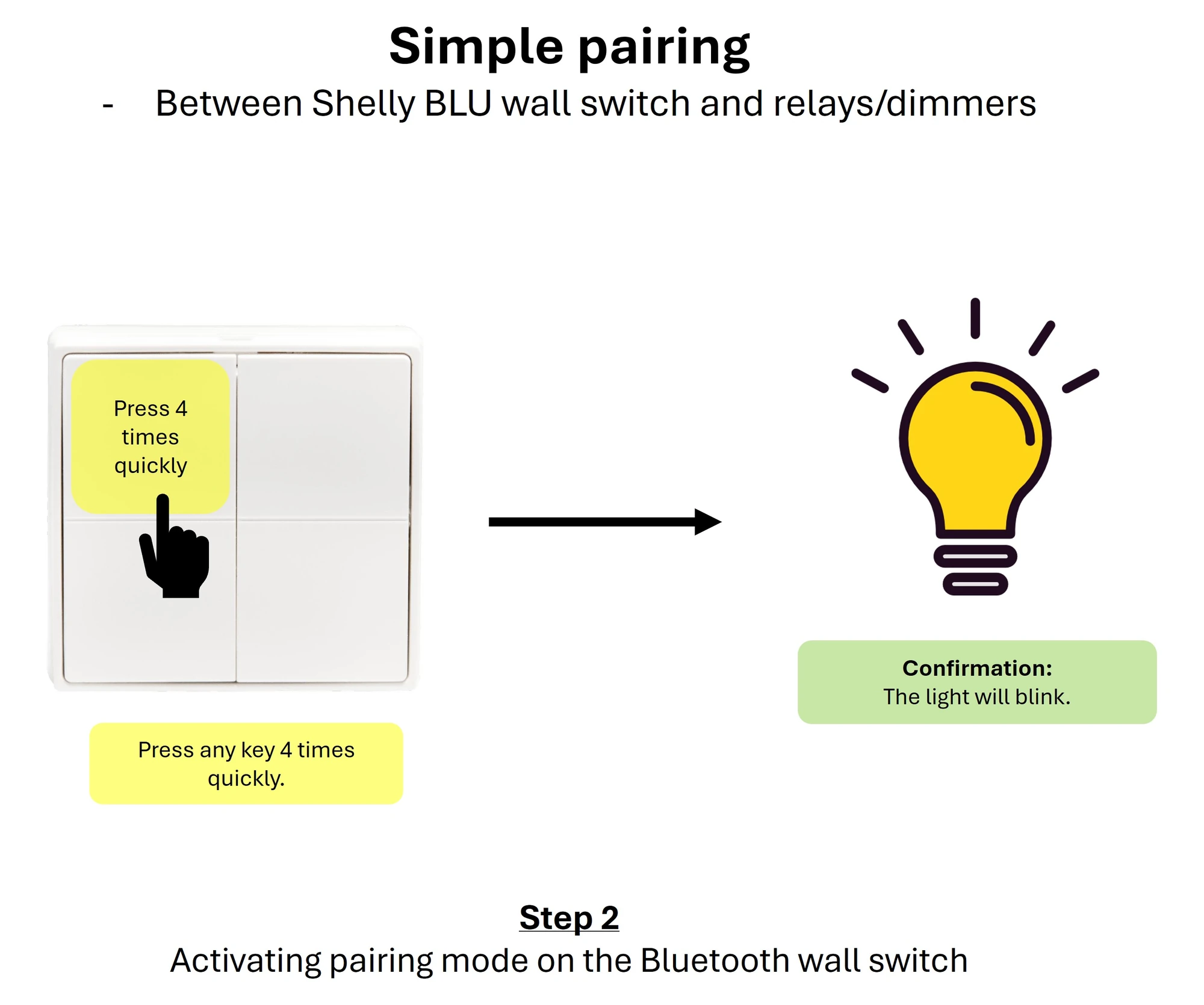
  1. Press any button on the BLU wall switch 4 times quickly.
  2. The light will blink 2 times to confirm.

It can take up to 5 seconds before the blink appears.

For older Bluetooth-only devices (without Zigbee/ZB), press and hold any two buttons for 10 seconds instead.

Press any button on the BLU wall switch four times quickly.
Four quick presses on any BLU button — the light blinks twice.

Choose your ON button

This step is the same for both methods.

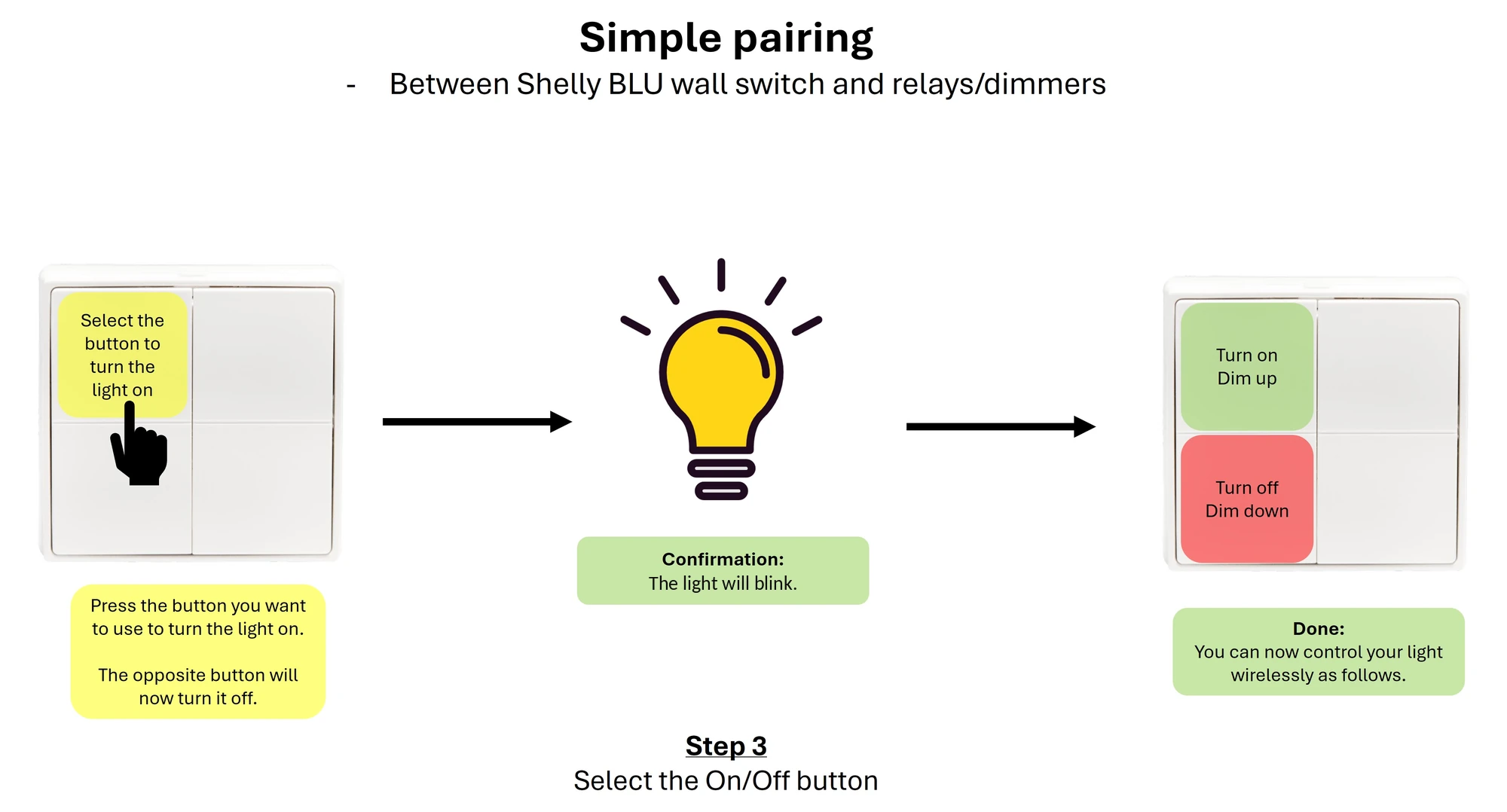
  1. Press the button on the BLU wall switch you want to use as the ON / dim-up button.
  2. The light will blink 3 times to confirm.
  3. The opposite button is automatically assigned as OFF / dim-down.
Press the BLU button you want to use as the ON button.
The button you press becomes ON / dim-up. The light blinks three times to confirm.

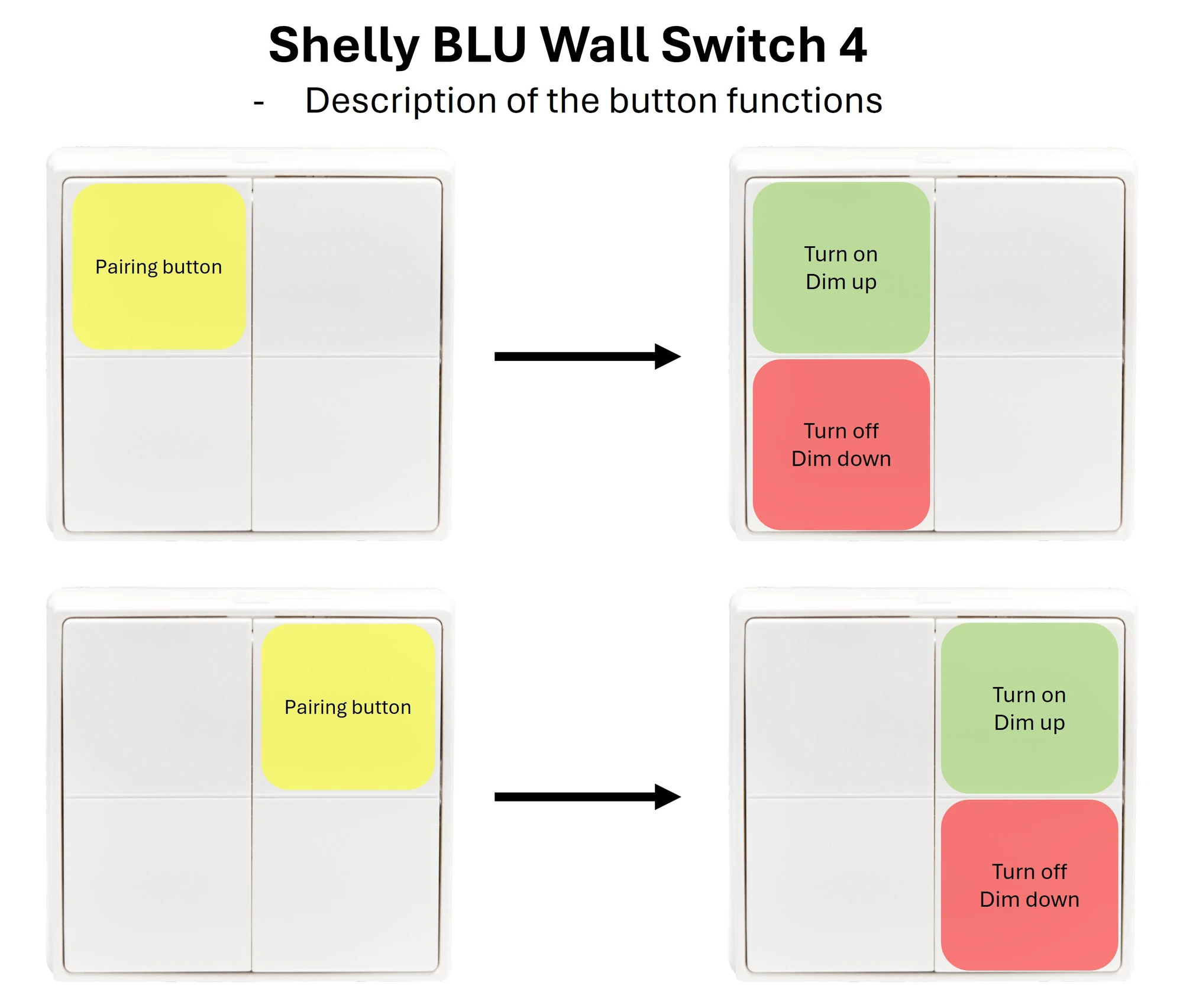
How button assignment works

The BLU Wall Switch uses two buttons to control your light. When you press a button to assign it as ON, the opposite button automatically becomes OFF. See the diagram below for examples:

Diagram showing how the chosen ON button pairs with the opposite button as OFF.
Press the top-left as ON → bottom-left becomes OFF. Press the top-right as ON → bottom-right becomes OFF.

Done — your switch is paired

Pairing is complete. Your BLU Wall Switch now controls the relay or dimmer:

  • ON button: turn the light on. Hold to dim up.
  • OFF button: turn the light off. Hold to dim down.

For dimmers, hold the button to smoothly dim up or down to your preferred level.

Video tutorial

Dansk videogennemgang af parringen.

Dansk videogennemgang

Two short walkthroughs — one for each method.

Pairing via physical switch
Pairing via web interface

Tips & troubleshooting

  • Light doesn’t blink after 4 quick presses on the physical switch? Check that you have a momentary spring switch (not a regular toggle) wired to the SW input.
  • Pairing fails? Make sure both devices are within ~10 meters and that no thick walls or large metal objects block the signal.
  • Update firmware first. The relay/dimmer needs firmware 1.3 or newer (Gen3) or 1.4 or newer (Pro). BLU+Zigbee devices ship with supported firmware out of the box.
  • BLU buttons can still appear in the app. Even after direct pairing, the BLU buttons remain visible in the Shelly Smart Control app and can be used for cloud-based automations with the remaining buttons.
  • Need to unpair or change the ON button? Repeat the pairing process — the previous pairing is automatically replaced.