
Control shelly with a NTC Sensor
- Home
- Control shelly with a NTC Sensor
Control the Shelly based on readings from any NTC temperture sensor
In this example we use a Devireg NTC 15 kΩ sensor, but could be any NTC sensor
It is possible to get data from a NTC sensor into the shelly app.
For this we need to add a script on the Shelly device to control the heating.
The script uses the Steinhart–Hart formula, which uses the min, mid, and max values to perform the calculation.
Devireg sensor NTC 15 kΩ (The resistance value printed on an NTC sensor (e.g., “15 kΩ”) indicates the sensor’s nominal resistance at 25 °C)
Sensor data:
0°C / 32°F = 42000Ω
25°C / 77°F = 15000Ω
50°C / 122°F = 6000Ω
Note: In this guide we use Virtual components to control the heating, but you can also change true to false in the line “useVirtualDesiredTemp: true,”.
Then it’s only controlled by the temperature set in the script.
Step 1: Preperation
Hardware
- Shelly 1PM Gen3*
- Shelly Plus Add-on
- NTC sensor.
* Other devices with the same form factor can also be used. However, if they’re Plus devices, you can’t control them from the app


Note: Make sure the device is updatet to latest firmware
Step 2: Add Sensor in the app
We now need to add the sensor in the app
Note. this can also be done from the web interface
- Click on the device
- Click on the Add-on symbol
- Click Add Peripheral
- Select Analog
- Click Add Peripheral
If it ask to reboot just let it


Step 3: Insert and prepare script
You can find basic How to add script guide here.
Now copy the entire code below into the new script.
(Click the Copy button in the script’s top-right corner.)
Note. this script is based on https://github.com/ALLTERCO/shelly-script-examples/blob/main/ntc-conversion.js with slightly modifications
// Brief description:
// - Periodically reads voltage from a thermistor via a voltmeter component
// - Converts voltage to temperature using Steinhart-Hart equation
// - Writes calculated temperature to a virtual component
// - Retrieves desired temperature (either static or from virtual component)
// - Applies hysteresis and optional inversion to control a relay based on temperature

// SH Coefficient Calculator
// https://rusefi.com/Steinhart-Hart.html
//
// Thermistor wiki page
// https://en.wikipedia.org/wiki/Thermistor

/**************** START CHANGE HERE ****************/
let CONFIG = {
  scanInterval: 10, // seconds, the script runs every 10 seconds to fetch the voltage
  voltmeterID: 100, // ID of the voltmeter - when we install the plugin, the device defines this number

  // Desired temperature settings
  useVirtualDesiredTemp: true, // Set to true to use a virtual component for the desired temperature
  desiredTemp: 25,             // Desired temperature in Celsius (used if useVirtualDesiredTemp is false)
  hysteresis: 1,               // Hysteresis band in degrees Celsius
  invertRelay: false,          // Set to true to invert the relay action

  /**
   * Applies math to the voltage and returns the result. This function is called every time the voltage is measured
   * @param {Number} voltage The currently measured voltage
   * @returns The temperature based on the voltage
   */
  calcTemp: function (voltage) {
    const constVoltage = 10;
    const R1 = 10000;
    const A = 0.0010377385695278978;
    const B = 0.00021633455581572119;
    const C = 2.654857502585547e-7;

    const R2 = R1 * (voltage / (constVoltage - voltage));
    const logR2 = Math.log(R2);
    let T = 1.0 / (A + (B + C * logR2 * logR2) * logR2);
    T = T - 273.15; // Celsius

    console.log(
      "Current Temperature: " +
        T.toFixed(2) +
        " °C | Voltage: " +
        voltage +
        "V | Resistance: " +
        R2.toFixed(2) +
        "Ω"
    );

    return T;
  },

  /**
   * This function is called every time a temperature is read
   * @param {Number} temperature The currently calculated temperature
   * @param {Number} desiredTemp The desired temperature
   */
  onTempReading: function (temperature, desiredTemp) {
    // Fetch the current relay status
    let switchStatus = Shelly.getComponentStatus("switch:0");
    if (switchStatus === null || typeof switchStatus.output !== "boolean") {
      console.log("Cannot read relay status");
      return;
    }
    let relayIsOn = switchStatus.output; // true or false

    // Calculate thresholds
    let onThreshold = desiredTemp - CONFIG.hysteresis / 2;
    let offThreshold = desiredTemp + CONFIG.hysteresis / 2;

    let turnRelayOn = false;
    let turnRelayOff = false;

    if (!CONFIG.invertRelay) {
      // Normal operation
      if (!relayIsOn && temperature < onThreshold) {
        turnRelayOn = true;
      } else if (relayIsOn && temperature > offThreshold) {
        turnRelayOff = true;
      }
    } else {
      // Inverted operation
      if (!relayIsOn && temperature > offThreshold) {
        turnRelayOn = true;
      } else if (relayIsOn && temperature < onThreshold) {
        turnRelayOff = true;
      }
    }

    if (turnRelayOn) {
      // Turn relay on
      Shelly.call("Switch.Set", { id: 0, on: true });
      console.log("Turning relay on");
    } else if (turnRelayOff) {
      // Turn relay off
      Shelly.call("Switch.Set", { id: 0, on: false });
      console.log("Turning relay off");
    } else {
      // No relay action needed
      console.log("No relay action needed");
    }
  },
};
/**************** STOP CHANGE HERE ****************/

function fetchVoltage() {
  // Fetch the voltmeter component
  const voltmeter = Shelly.getComponentStatus(
    "voltmeter:" + JSON.stringify(CONFIG.voltmeterID)
  );

  // Exit if component does not exist
  if (typeof voltmeter === "undefined" || voltmeter === null) {
    console.log("Cannot find voltmeter component");
    return;
  }

  const voltage = voltmeter["voltage"];

  // Exit if voltage cannot be read
  if (typeof voltage !== "number") {
    console.log("Cannot read the voltage or it is NaN");
    return;
  }

  // Calculate the temperature based on the voltage
  const temp = CONFIG.calcTemp(voltage);
  // Write temperature to virtual component with id 200
  Shelly.call("Number.Set", { id: 200, value: Number(temp.toFixed(2)) });
  print("Temperature " + temp.toFixed(2) + " °C written to Virtual component (Id:200)");

  // Exit if temperature was not calculated correctly
  if (typeof temp !== "number") {
    console.log("Something went wrong calculating the temperature");
    return;
  }

  // Fetch desired temperature if necessary
  if (CONFIG.useVirtualDesiredTemp) {
    Shelly.call(
      "Number.GetStatus",
      { id: 201 },
      function (result, error_code, error_message) {
        if (error_code === 0 && result && typeof result.value === "number") {
          let desiredTemp = result.value;
          console.log("Desired temperature fetched from virtual component: " + desiredTemp + " °C");
          CONFIG.onTempReading(temp, desiredTemp);
        } else {
          console.log("Error fetching desired temperature: " + error_message);
          // Handle error, maybe use default desired temperature
          CONFIG.onTempReading(temp, CONFIG.desiredTemp);
        }
      }
    );
  } else {
    // Use desired temperature from CONFIG
    CONFIG.onTempReading(temp, CONFIG.desiredTemp);
  }
}

// Initialize the script
function init() {
  // Start the timer
  Timer.set(CONFIG.scanInterval * 1000, true, fetchVoltage);

  // Fetch voltage at startup
  fetchVoltage();
}

init();
Step 4: Configurere the script
At the top of the script, under CONFIG, you can modify various settings. Each option is explained on its own line.
let CONFIG = {
  scanInterval: 10, // seconds, the script runs every 10 seconds to fetch the voltage
  voltmeterID: 100, // ID of the voltmeter - when we install the plugin, the device defines this number

  // Desired temperature settings
  useVirtualDesiredTemp: true, // Set to true to use a virtual component for the desired temperature
  desiredTemp: 25,             // Desired temperature in Celsius (used if useVirtualDesiredTemp is false)
  hysteresis: 1,               // Hysteresis band in degrees Celsius
  invertRelay: false,          // Set to true to invert the relay action
Step 5: See and control the temperature from the app
In order to view and control the temperature via the app, you need to add some virtual components (VCs) to the device.
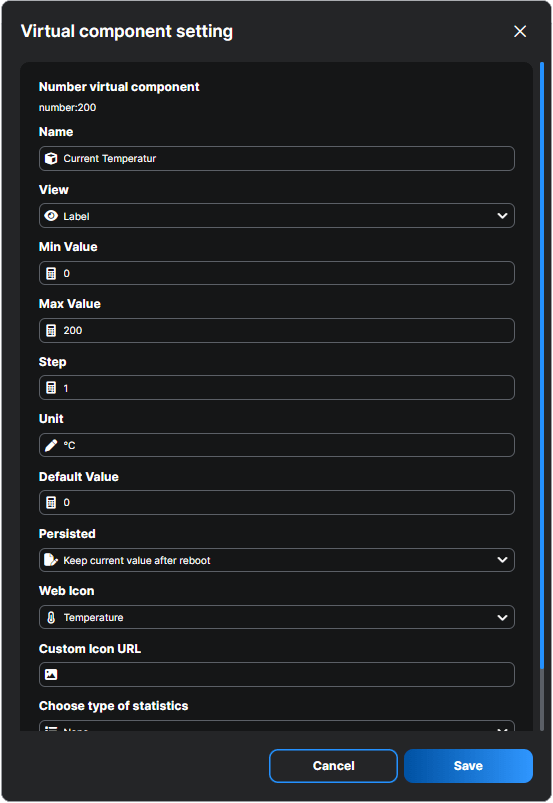
We need to create two Number VC’s.
1. One to show the current temperature (ID:200)
2. One to set the desired temperature (ID:201)
Note: The ID number the VC gets depends on the order it’s made (first gets 200, second 201 etc.)
- Click on the device and select the Virtual Components icon.
- Select Components and create a Virtual Component.
- Choose a numbered Virtual Device.
- Enter the various settings for how the device should look (this can always be changed later).

The settings for the two VC's
Current Temperature (ID:200)
Desired Temperature (ID:201)

You should now see the two VCs under Components, and after about 10 seconds the temperature will appear and you can set the desired temperature with the slider.
You can add these VCs to a group and extract that group as a device.
Note: As a basic user, you can extract only one group.
- Click the Group tab
- Click create Group
- Give the Group a name
- Select the VC’s
- Optional: Toggle Extract virtual group as device if you want it to show op as an device
Note: If added as device we can easily create scenes based on its value.

Basically you are done now.
**UNLESS!! It's NOT a 15 kΩ sensor**
If it’s not a 15 kΩ sensor you have to convert your NTC sensor’s values into the data we need to feed into the script using the Steinhart–Hart formula.
The NTC sensor information we need is:
- Resistance at the sensor’s minimum temperature.
- Resistance at the sensor’s maximum temperature.
- Mid values (Since the sensor’s name (resistance) always refers to the resistance measured at a temperature of 25 °C)
Step 1: Calculate the correct values for the script
- Go to https://rusefi.com/Steinhart-Hart.html (Note!! Temperature is in Fareheit) Convert Celsius to Fahrenheit here
- Type in the sensor data in the formular
(Another Thermistor Calculator https://www.thinksrs.com/downloads/programs/therm%20calc/ntccalibrator/ntccalculator.html)
Exampel
A NTC10k Sensor with following data is added in the calculator.
- Min. temp er -40°C / 40°F = 323839Ω resistance.
- Average temp er 25°C / 77°F = 10000Ω resistance.
- Max. temp is 90°C / 194°F = 1034Ω resistance.

When clicking on Calculate A, B,C you the get values for A, B and C.
You then have to insert these values into the script at A, B, and C.
(Line 26,27 and 28)
Before
After
 calcTemp: function (voltage) {
    const constVoltage = 10;
    const R1 = 10000;
    const A = 0.0010377385695278978;
    const B = 0.00021633455581572119;
    const C = 2.654857502585547e-7;
calcTemp: function (voltage) {
const constVoltage = 10;
const R1 = 10000;
const A = 0.0002860605707913572;
const B = 0.000494077114550694;
const C = -0.0000011653936618056673;